Guide Text and regex
I need the number out of “Order 4471 — urgent”
One column, numbers buried inside text, in a slightly different place on every row. There are four ways to do it and which one is right depends entirely on which Excel you have.
On Excel 365, =REGEXREPLACE(A2,"[^0-9]","") strips every
non-digit and leaves the number. On older versions use Power Query's Extract tools,
or Flash Fill (Ctrl+E) for a one-off, or nested SUBSTITUTE calls if the
unwanted characters are predictable. The result is text in every case — wrap it in
VALUE if you need to do arithmetic on it.
Why there is no single answer
Because “the number” means different things in different files, and the methods differ in what they assume.
- All digits joined together.
Order 4471 line 3becomes44713. Usually not what you meant. - The first run of digits. Gives
4471. Usually right. - A number in a fixed position. Simple, until one row is different.
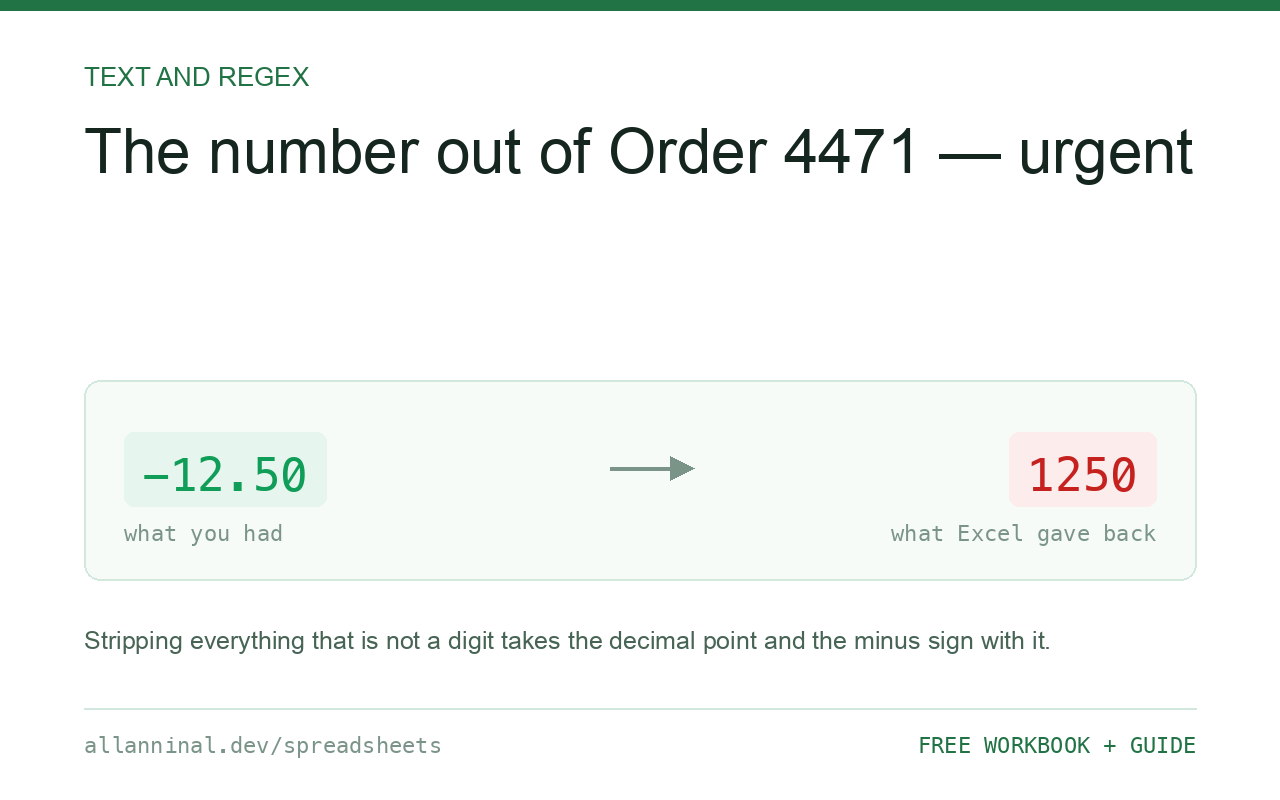
- A decimal or a negative. Stripping non-digits also removes the point and the
minus sign, silently turning
-12.50into1250.
Decide which you actually want before picking the method. That last one is the expensive mistake.
| What you see | What actually happened | What fixes it |
|---|---|---|
| All the digits ran together | You stripped everything that was not a digit | Extract the first run instead |
| A decimal turned into a whole number | The decimal point was stripped too | Keep it: [^0-9.] |
| A negative lost its sign | The minus was stripped | Keep it: [^0-9.-] |
| Result will not add up | It is text, not a number | Wrap in VALUE |
| Flash Fill guessed wrongly | Not enough examples, or an inconsistent pattern | Give it three or four examples |
How to extract numbers from text
Excel 365: one regex
Shortest and clearest, if you have it:
=REGEXREPLACE(A2,"[^0-9]","")
=IFERROR(REGEXEXTRACT(A2,"\d+"),"")
The first joins every digit together. The second returns only the first run
of digits, which is usually the one you meant. Keep the decimal point and minus with
[^0-9.-].
Any recent Excel: Power Query
Data → From Table/Range, then Transform → Extract for
text before, after or between delimiters. For digits specifically, Add Column → Custom
Column with Text.Select([Column1],{"0".."9"}).
The advantage over a formula: it re-runs on next month's file.
A one-off: Flash Fill
In the column beside your data, type what you want for the first two or three rows, then press Ctrl+E. Excel infers the pattern and fills down.
It is genuinely impressive and it is a one-off: the result is static values, and adding rows later does nothing. Check the output — it guesses, and on inconsistent data it guesses wrong quietly.
Every version: nested SUBSTITUTE
Ugly, universal, and reliable when the junk is a known set:
=VALUE(SUBSTITUTE(SUBSTITUTE(SUBSTITUTE(A2,"Order ",""),"$",""),",",""))Works in every version of Excel, in Sheets and in LibreOffice, which is why the free workbooks on this site use this form rather than regex.
Everything on this page, as a workbook you can use on your own data
The Excel Data Cleanup Kit — a seven-tab workbook that finds all nine of these faults in a pasted column and hands back a cleaned version, a five-page PDF guide, and a short read-me. Free, no email required.
- Excel-Data-Cleanup-Workbook-Free.xlsx — paste a column, read the diagnosis, take the cleaned output
- Excel-Data-Survival-Guide.pdf — the eight failures, the import routine that prevents them, every formula explained
Plain .xlsx: no macros, no add-ins. Opens in Excel, Google Sheets,
Apple Numbers and LibreOffice Calc.
The result is text
Every method here returns text, even when it looks like a number. It will be left-aligned, and
SUM will ignore it. Wrap it in VALUE, or use
Data → Text to Columns → Finish on the finished column to convert the lot.
Keep the leading zeros if it is a code
If what you are pulling out is a reference rather than a quantity — a SKU, an order number — do not convert it to a number. That is what strips the leading zeros. Leave it as text.
Getting the text out instead
Invert the pattern: =REGEXREPLACE(A2,"[0-9]","") removes the digits and leaves
everything else. Usually worth a TRIM afterwards, since removing digits tends to leave
double spaces behind.
When the position is fixed
If the number is always in the same place, the old functions are clearer than any pattern:
=MID(A2,7,4) takes four characters from position seven. Simple and readable — and
it breaks the day one row is different, so add a check that the result is numeric.
Questions people ask
How do I extract only the numbers from a cell?
On Excel 365 use =REGEXREPLACE(A2,"[^0-9]",""). On older versions use Power Query, Flash Fill for a one-off, or nested SUBSTITUTE calls.
Why did my decimal point disappear?
Stripping everything that is not a digit removes the point and the minus sign too. Use [^0-9.-] to keep both.
Why does the result not add up?
Every method returns text, even when it looks like a number. Wrap it in VALUE, or run Text to Columns on the finished column.
What is Flash Fill and when should I use it?
Type the answer for a few rows and press Ctrl+E, and Excel infers the pattern. It is excellent for a one-off, but the result is static and it guesses silently on inconsistent data.
How do I get the first number rather than all the digits joined?
Use REGEXEXTRACT with the pattern \d+ , which returns the first run of digits rather than concatenating every digit in the cell.
Should I convert an extracted order number to a number?
No. If it is a reference rather than a quantity, leave it as text — converting it is what strips any leading zeros.
Related guides
Take the workbook with you
The Excel Data Cleanup Kit — a seven-tab workbook that finds all nine of these faults in a pasted column and hands back a cleaned version, a five-page PDF guide, and a short read-me. Free, no email required.
- Excel-Data-Cleanup-Workbook-Free.xlsx — paste a column, read the diagnosis, take the cleaned output
- Excel-Data-Survival-Guide.pdf — the eight failures, the import routine that prevents them, every formula explained
Plain .xlsx: no macros, no add-ins. Opens in Excel, Google Sheets,
Apple Numbers and LibreOffice Calc.