Guide Dynamic arrays
My formula returns #SPILL! and the cells below look empty
Modern Excel formulas can return a whole column of answers from one cell. They need somewhere to put them, and #SPILL! means the room is not free — often because of something you cannot see.
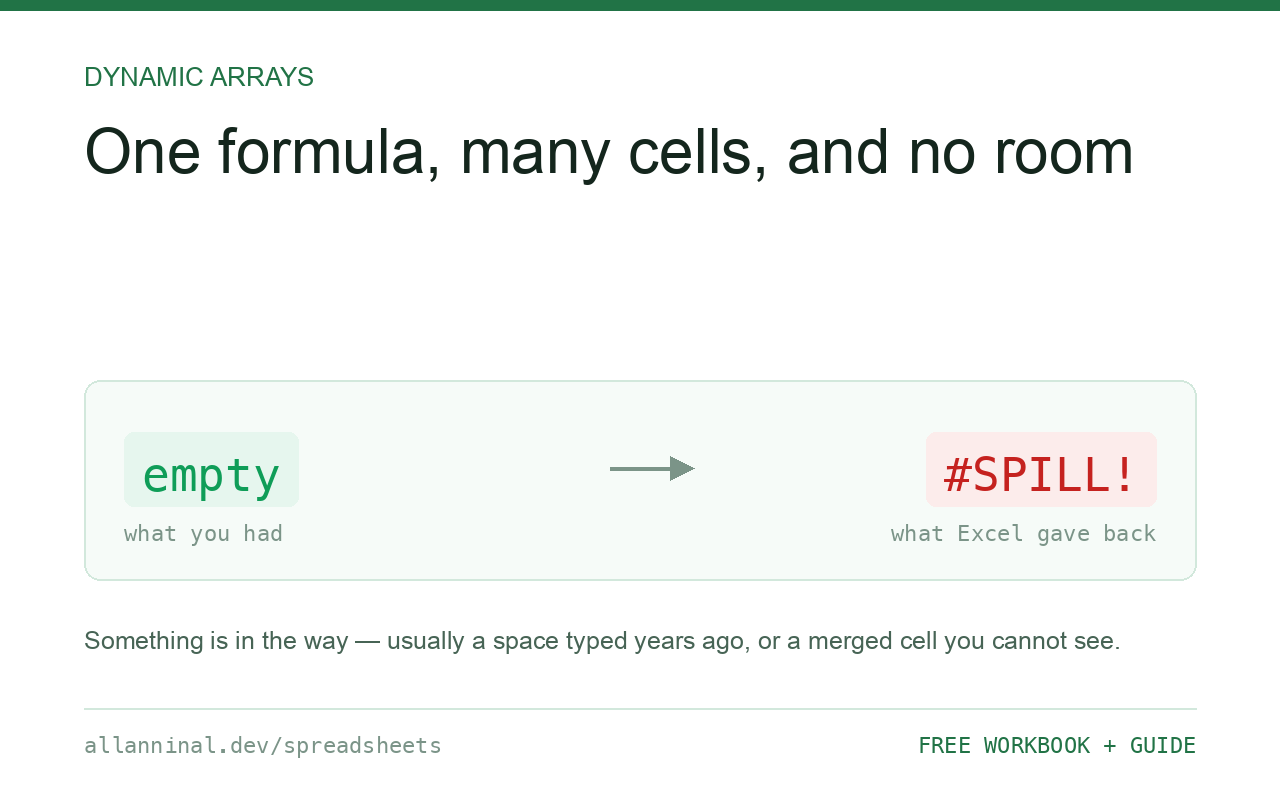
#SPILL! means the formula wants to write into cells that are
not empty. Excel highlights the area it needs with a dashed border — clear everything
inside it. The usual culprits are a space someone typed years ago, a merged cell anywhere in the
range, or a formula sitting inside a table, where spilling is not allowed at all.
One formula that fills many cells
Excel used to work one cell at a time: one formula, one answer. Since 2019 a formula can return a whole block, and Excel writes it into the cells below and to the right. That writing is called spilling, and the block is the spill range.
You only type in the top-left cell. Everything else is produced by it, shown with a faint blue border, and cannot be edited directly — change the one formula and the whole block redraws.
Spilling needs empty cells. If anything at all is in the way, Excel refuses rather than
overwriting your data, and shows #SPILL!. It is a polite error: it is protecting
something.
| What you see | What actually happened | What fixes it |
|---|---|---|
#SPILL! and the cells look empty | A space or an invisible character is in one of them | Select the range and press Delete |
#SPILL! with nothing visible at all | A merged cell inside the spill range | Unmerge it |
#SPILL! inside a table | Excel tables do not allow spilling | Move the formula outside the table |
#SPILL! mentioning size | The formula would need more rows than remain | Move it up, or narrow the input range |
#NAME? rather than a spill | Your Excel version does not have the function | Use the older formula instead |
How to fix a #SPILL! error
Look at the dashed border
Click the cell showing #SPILL!. Excel outlines the area it needs with
a dashed border. Whatever is blocking it is inside that outline, so you never have to guess where to
look.
The yellow warning triangle also names the reason — hover it and it will say whether the range is not blank, is merged, or is too big.
Select the whole range and clear it
Select the dashed area, leave out the formula cell, and press Delete. This is more reliable than looking for the offender, because the usual cause is a single space typed into a cell years ago — it is not visible, and it is not blank.
Check for merged cells
A merged cell blocks a spill even when it is empty. Select the range and look at Merge & Center on the Home tab — if it looks pressed, something in there is merged. Click it to unmerge.
Merged cells break sorting, filtering, tables and spilling. For anything holding data rather than a title, Center Across Selection gives the same look with none of the damage.
Move the formula out of the table
Excel tables give each row its own copy of a formula, which is incompatible with one formula filling many rows. There is no setting for this — move the formula outside the table.
It can still read from the table. Only writing into one is the problem.
Everything on this page, as a workbook you can use on your own data
The Excel Data Cleanup Kit — a seven-tab workbook that finds all nine of these faults in a pasted column and hands back a cleaned version, a five-page PDF guide, and a short read-me. Free, no email required.
- Excel-Data-Cleanup-Workbook-Free.xlsx — paste a column, read the diagnosis, take the cleaned output
- Excel-Data-Survival-Guide.pdf — the eight failures, the import routine that prevents them, every formula explained
Plain .xlsx: no macros, no add-ins. Opens in Excel, Google Sheets,
Apple Numbers and LibreOffice Calc.
Pointing at a spill range
You can refer to the whole result with a # after the top-left cell:
=SUM(D2#)D2# means “everything D2 spilled”, however big that is
today. It grows and shrinks on its own, which is far better than guessing a range that is big enough
— a habit that leaves you summing a thousand empty rows.
Which versions have this
Dynamic arrays are in Microsoft 365 and Excel 2021 onwards. Excel 2019 and earlier do not have
them, and neither does LibreOffice in the same form. Google Sheets has had the behaviour for years
through ARRAYFORMULA.
If you send a workbook containing spilling formulas to someone on Excel 2019, they see
#NAME?. There is no compatibility mode for this, which is why the free workbooks on this
site avoid these functions in cells.
Do not leave room by guessing
The instinct is to keep a big empty area below a spilling formula. Better to put spilling formulas
in their own columns, with nothing to the right, and let them size themselves. The
# operator means nothing downstream needs to know how big they got.
Questions people ask
What does #SPILL! mean?
The formula returns more than one cell and something is in the way of where it needs to write. Excel refuses rather than overwriting your data.
The cells look empty. Why is it still blocked?
Almost always a space or an invisible character in one of them, which is not the same as blank. Select the whole range and press Delete.
Why does it happen inside a table?
Excel tables give each row its own copy of a formula, which is incompatible with one formula filling many rows. Move the formula outside the table.
What does the # after a cell reference do?
It refers to the entire spilled result. D2# means everything D2 spilled, however large it is today, so the reference resizes itself.
Which versions support this?
Microsoft 365 and Excel 2021 onwards. Excel 2019 and earlier show #NAME?, and there is no compatibility mode.
Does Google Sheets have spilling?
Yes, and it has had it far longer, through ARRAYFORMULA and natively in many functions.
Related guides
Take the workbook with you
The Excel Data Cleanup Kit — a seven-tab workbook that finds all nine of these faults in a pasted column and hands back a cleaned version, a five-page PDF guide, and a short read-me. Free, no email required.
- Excel-Data-Cleanup-Workbook-Free.xlsx — paste a column, read the diagnosis, take the cleaned output
- Excel-Data-Survival-Guide.pdf — the eight failures, the import routine that prevents them, every formula explained
Plain .xlsx: no macros, no add-ins. Opens in Excel, Google Sheets,
Apple Numbers and LibreOffice Calc.