Guide Worked examples
Cleaning a timesheet export so the hours add up
Hours entered as 7:30, 7.5 and 7h 30m in the same column, a weekly total that resets past 24 hours, and employee numbers that have lost their leading zeros.
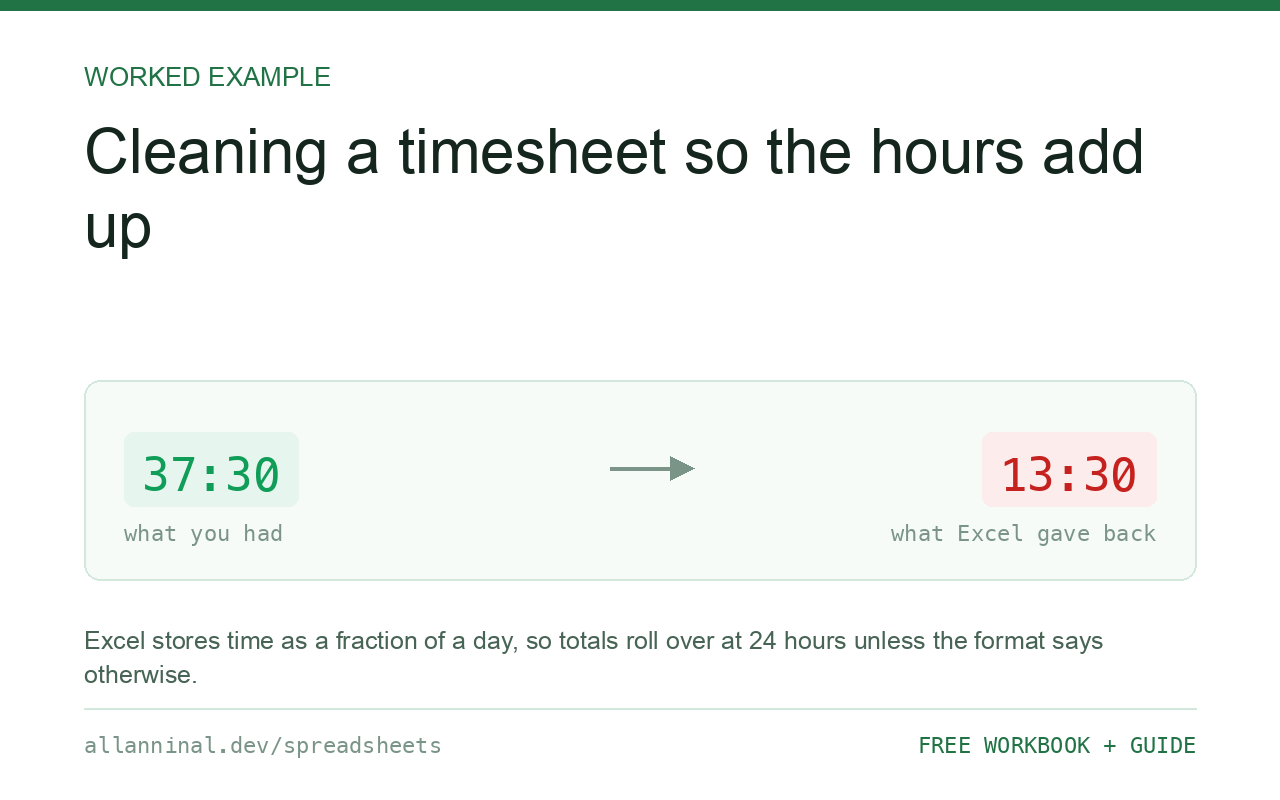
If a weekly total shows 13:30 instead of 37:30, the cell format is
wrong, not the arithmetic. Excel stores time as a fraction of a day, so totals past 24 hours
roll over unless the format is [h]:mm — the square brackets are what let hours
accumulate. Fix the format first, then deal with mixed entry formats, then protect the employee ID
column.
Three faults, and the one that is only a format
The total resets past 24 hours. Excel stores a time as a fraction of
a day: 12:00 is 0.5. Add up 37.5 hours and the underlying value is 1.5625 days, which a
h:mm format displays as 13:30 — correctly showing the time of day 1.5625 days in.
The value is right and only the format is wrong. [h]:mm tells Excel to keep counting
past 24.
Mixed entry formats. One column containing 7:30, 7.5
and 7h 30m is three different data types. 7:30 is a time value,
7.5 is a number, 7h 30m is text. SUM adds the first two
— wrongly, since 7:30 as a fraction of a day is 0.3125 while 7.5 is seven and a half
— and ignores the third.
Employee IDs. Zero-padded, and stripped on import, exactly as everywhere else.
| What you see | What actually happened | What fixes it |
|---|---|---|
| Weekly total shows 13:30, not 37:30 | Format rolls over at 24 hours | Use the [h]:mm format |
| Total is a tiny decimal like 1.56 | Time is a fraction of a day; format is General | Apply [h]:mm, or multiply by 24 |
| Some hours excluded from the total | Those cells are text | Convert them; check with COUNT |
| 7:30 and 7.5 give different results | One is a time value, one is a number | Standardise the column first |
| Employee IDs shorter than expected | Leading zeros stripped on import | Re-import that column as Text |
How to clean a timesheet export
Apply the [h]:mm format to every total
Format Cells → Custom, and type [h]:mm. The square
brackets are the entire fix — they tell Excel not to roll the hours over at 24. Nothing about
the underlying values changes; they were correct all along.
Decide on one unit and convert everything to it
Do not mix. Decimal hours are usually the better target, because that is what most payroll systems expect and it removes the fraction-of-a-day confusion entirely:
=A2*24Format the result as a plain number with two decimals. 7:30 becomes 7.5. To go back
the other way, divide by 24 and format as [h]:mm.
Find the entries that are text
Text entries such as 7h 30m are silently skipped:
=COUNTA(C2:C500)-COUNT(C2:C500)Anything above zero needs looking at. Filter to those rows — they usually share a format, because they came from one person or one system, so they can be fixed as a group.
Convert a written duration to hours
Where the text form is consistent, it can be parsed:
=IFERROR(VALUE(LEFT(A2,SEARCH("h",A2)-1))
 + VALUE(MID(A2,SEARCH("h",A2)+1,SEARCH("m",A2)-SEARCH("h",A2)-1))/60,"CHECK")
Takes what is before the h as hours and what is between h
and m as minutes. Anything not matching that shape returns CHECK for manual
review rather than erroring.
Protect the employee ID column on import
Same rule as every other identifier: Transform Data → Data Type → Text on the employee number. A payroll file whose IDs no longer match the HR system is worse than no file, because the mismatch is not obvious until someone is paid wrongly.
Everything on this page, as a workbook you can use on your own data
The Excel Data Cleanup Kit — a seven-tab workbook that finds all nine of these faults in a pasted column and hands back a cleaned version, a five-page PDF guide, and a short read-me. Free, no email required.
- Excel-Data-Cleanup-Workbook-Free.xlsx — paste a column, read the diagnosis, take the cleaned output
- Excel-Data-Survival-Guide.pdf — the eight failures, the import routine that prevents them, every formula explained
Plain .xlsx: no macros, no add-ins. Opens in Excel, Google Sheets,
Apple Numbers and LibreOffice Calc.
Why 7:30 plus 7.5 is not 15
Worth understanding once, because it explains most timesheet confusion. 7:30 entered
as a time is stored as 0.3125 — seven and a half twenty-fourths of a day. 7.5
entered as a number is stored as 7.5. Adding them gives 7.8125, which formatted as time is 18:45 and
formatted as a number is 7.8125. Neither is 15 hours.
This is why standardising the column is step two and not an optional tidy-up.
Overtime thresholds need decimal hours
Any calculation that compares hours against a threshold is far easier in decimal:
=MAX(0,C2-40)With C2 in decimal hours. Attempting the same against time values means comparing
against 40/24, which works but is a reliable source of mistakes in a file other people
will maintain.
Rounding rules belong in the formula, visibly
If your organisation rounds to the nearest quarter hour, write it explicitly rather than relying on display formatting:
=MROUND(C2,0.25)Formatting alone would leave the underlying value unrounded, so the total would not match the sum of the displayed rows — the kind of discrepancy that is very hard to explain to someone querying their pay.
Keep the raw export
Payroll figures get queried, sometimes months later. Keep the untouched export beside the cleaned version so that any figure can be traced back to what the time system actually recorded.
Questions people ask
Why does my weekly total show 13:30 instead of 37:30?
Excel stores time as a fraction of a day, so the display rolls over at 24 hours. The value is correct — apply the custom format [h]:mm, where the square brackets let hours accumulate past 24.
Why do 7:30 and 7.5 give different results?
7:30 entered as a time is stored as 0.3125 of a day, while 7.5 is the number seven and a half. They are different data types and cannot be added meaningfully until the column is standardised.
Should I use decimal hours or time values?
Decimal hours for anything that feeds payroll. Most payroll systems expect them, threshold comparisons are much simpler, and the fraction-of-a-day confusion disappears.
How do I convert a time value to decimal hours?
Multiply by 24 and format the result as a plain number. To convert back, divide by 24 and format as [h]:mm.
Why are some hours missing from my total?
Those entries are text — typically written forms like 7h 30m — and SUM skips them. Compare COUNTA with COUNT over the column to see how many.
Where should rounding rules live?
In the formula, using MROUND, not in the cell format. Formatting alone leaves the underlying value unrounded, so the total will not match the sum of the displayed rows.
Related guides
Take the workbook with you
The Excel Data Cleanup Kit — a seven-tab workbook that finds all nine of these faults in a pasted column and hands back a cleaned version, a five-page PDF guide, and a short read-me. Free, no email required.
- Excel-Data-Cleanup-Workbook-Free.xlsx — paste a column, read the diagnosis, take the cleaned output
- Excel-Data-Survival-Guide.pdf — the eight failures, the import routine that prevents them, every formula explained
Plain .xlsx: no macros, no add-ins. Opens in Excel, Google Sheets,
Apple Numbers and LibreOffice Calc.