Guide Data integrity
Excel keeps deleting the zero at the front of my numbers
Postcodes, SKUs, employee IDs and sort codes all start with a zero, and Excel removes it the moment it decides the cell is a number. Nothing warns you, and formatting the column afterwards does not bring it back.
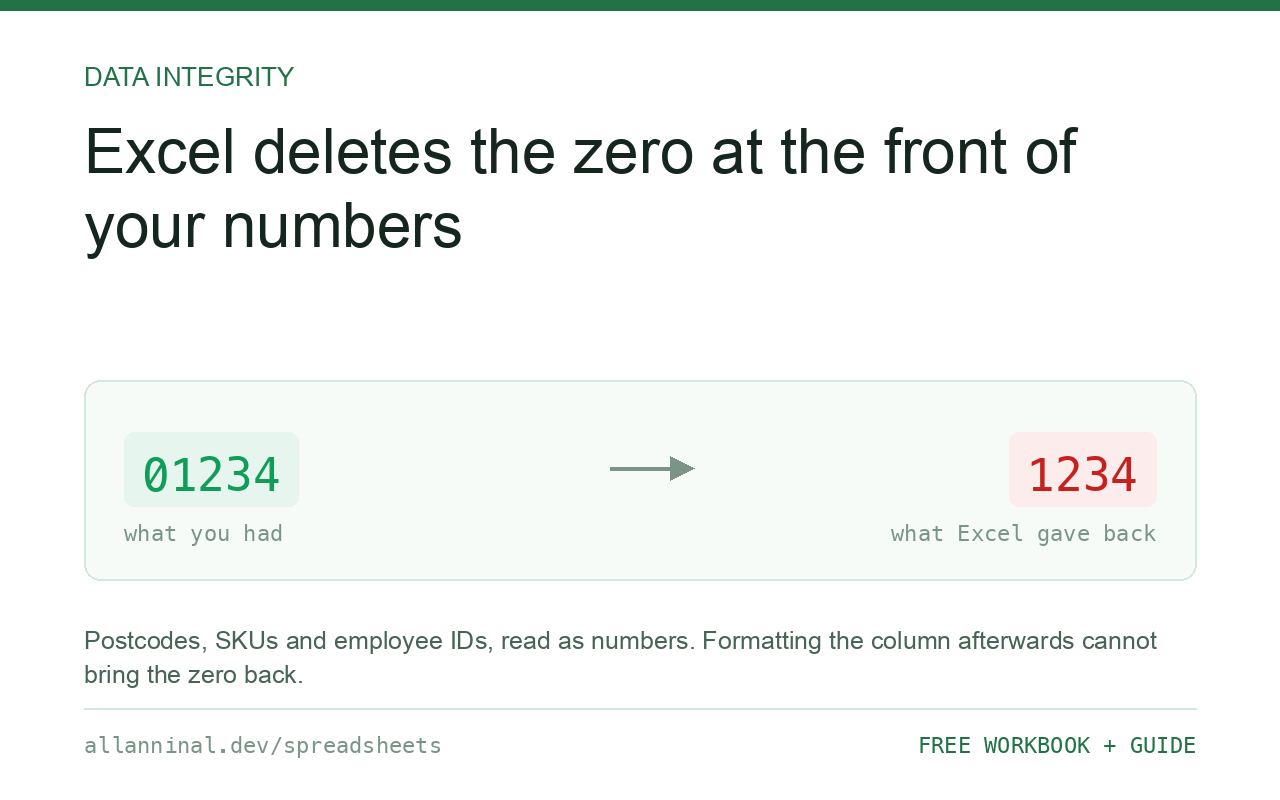
Excel removes a leading zero because it has classified the cell as a number, and 01234 and 1234 are the same number. The zero is not hidden by formatting — it is not stored at all. The fix is to tell Excel the column is text before the value arrives: import with Data → From Text/CSV → Transform Data and set the column type to Text. Formatting the column as Text afterwards does not restore the zero, because there is nothing left to restore.
Why formatting the column afterwards never works
This is the part that wastes the afternoon. You open the file, see 1234 where 01234 should be, select the column, set the format to Text — and nothing changes. It looks like Excel is ignoring you.
It is not. Number formatting only controls how a stored value is displayed. When
Excel parsed 01234 it stored the number 1234, and the leading zero was discarded
at that moment. Changing the display format later asks Excel to re-render a value whose zero
no longer exists. The information is gone from the workbook, though it is still sitting
untouched in the original CSV.
That is why every real fix below happens before or during the import, not after it.
| What you see | What actually happened | What fixes it |
|---|---|---|
01234 shows as 1234 | Parsed as a number on open; the zero was never stored | Re-import the column as Text |
| The column is right-aligned | Excel right-aligns numbers and left-aligns text — this is the tell | Alignment tells you which type you actually have |
| Formatting as Text changes nothing | Formatting affects display, not the stored value | The value must be Text as it arrives |
A custom format like 00000 looks right | It pads for display only; the underlying value is still 1234 | Fine for fixed-width codes, wrong if the length varies |
How to keep leading zeros in Excel
Importing a CSV: use Power Query and set the column to Text
Open Excel first with a blank workbook — do not double-click the CSV. Then Data → From Text/CSV, pick the file, and in the preview window click Transform Data, not Load. In the Power Query editor, click the ID column, set Data Type → Text, then Close & Load. The zeros arrive intact because Excel never got to guess.
No Power Query? Rename the file to .txt first
A .csv opens silently using defaults. A .txt makes Excel
ask. Rename the file, open it, and at step 3 of the wizard select the ID column
and choose Text under Column data format. This works in every version of Excel including
the ones with no Power Query.
Typing or pasting a few values: format the cells as Text before entering
Select the still-empty column, Format Cells → Text, and only then
type or paste. Order is everything here: applied first it works, applied after it does nothing.
An apostrophe prefix ('01234) does the same thing for a single cell — the
apostrophe is not stored and not printed.
Rebuilding a zero that has a known fixed length
Sometimes the original file is gone and all you have is the damaged column. If the code has a genuinely fixed length — a five-digit US ZIP, say — you can rebuild it:
=TEXT(A2,"00000")This returns real text with the zeros restored. Use it only where the length is fixed and known. If your SKUs vary between four and seven characters, this pads everything to five and silently corrupts the rest — go back to the source file instead.
Everything on this page, as a workbook you can use on your own data
The Excel Data Cleanup Kit — a seven-tab workbook that finds all nine of these faults in a pasted column and hands back a cleaned version, a five-page PDF guide, and a short read-me. Free, no email required.
- Excel-Data-Cleanup-Workbook-Free.xlsx — paste a column, read the diagnosis, take the cleaned output
- Excel-Data-Survival-Guide.pdf — the eight failures, the import routine that prevents them, every formula explained
Plain .xlsx: no macros, no add-ins. Opens in Excel, Google Sheets,
Apple Numbers and LibreOffice Calc.
How to tell which type you actually have
Excel gives you the answer without a formula: numbers align right, text aligns left, unless someone has overridden the alignment. If your ID column is flush right, it is a number and the zeros are gone.
To be certain, test it:
=ISTEXT(A2)TRUE means it is text and safe. FALSE means Excel is holding a number, and any leading zero has already been discarded.
Which columns to protect
The rule is simple: if you would never do arithmetic on it, it is not a number. Nobody adds two postcodes together. Treat all of these as text, every time:
- Postcodes and ZIP codes — the entire US Northeast starts with 0
- SKUs, part numbers and batch codes
- Employee, member, student and patient IDs
- Phone numbers — and every international number written with a leading 0
- Bank sort codes and account numbers
- ISBNs, EANs and barcodes — these also hit the 15-digit limit
Google Sheets does the same thing
Sheets strips leading zeros on import too. The equivalent fix is Format → Number → Plain text applied to the column before the data lands, or on import choosing not to convert text to numbers.
Questions people ask
Why does Excel remove leading zeros?
Because it classifies the cell as a number, and as a number 01234 and 1234 are identical. The zero is not hidden by formatting — it is never stored.
Can I get the zeros back after the file is saved?
Not from the damaged workbook alone, unless the code has a fixed known length that you can rebuild with TEXT. The original CSV is unchanged, so re-importing it as Text is the reliable fix.
Does formatting the column as Text fix it?
No, not afterwards. Number formatting changes how a stored value is displayed, and the zero is no longer part of the stored value. The format must be applied before the data arrives.
Is the apostrophe trick safe?
Yes. A leading apostrophe forces the entry to be text, and the apostrophe itself is not stored in the value and does not print. It is practical for a handful of cells, not for a whole import.
Why do my zeros come back wrong after I share the file?
A custom number format like 00000 pads for display only. Anyone who exports the column, or reads it with a script, gets the underlying number without the zeros. Store it as text instead.
Does this happen in Google Sheets too?
Yes. Sheets applies the same numeric conversion on import. Set the column to Plain text before the data arrives.
Related guides
Take the workbook with you
The Excel Data Cleanup Kit — a seven-tab workbook that finds all nine of these faults in a pasted column and hands back a cleaned version, a five-page PDF guide, and a short read-me. Free, no email required.
- Excel-Data-Cleanup-Workbook-Free.xlsx — paste a column, read the diagnosis, take the cleaned output
- Excel-Data-Survival-Guide.pdf — the eight failures, the import routine that prevents them, every formula explained
Plain .xlsx: no macros, no add-ins. Opens in Excel, Google Sheets,
Apple Numbers and LibreOffice Calc.