Guide Formulas
My formula breaks the moment I drag it down
It works perfectly in the first cell. Drag it down and every row below is wrong, or full of errors. Nothing is broken — the references moved with the formula, which is what they are designed to do.
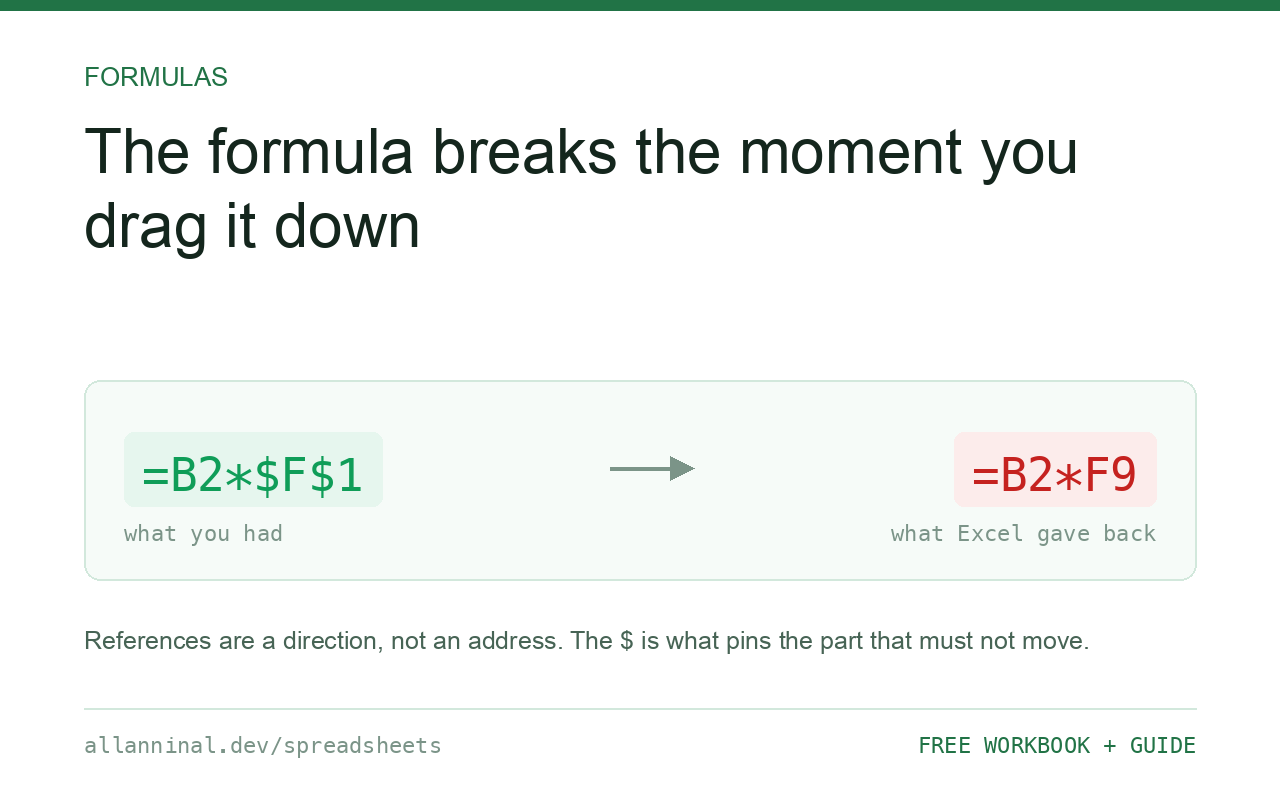
Excel references are relative by default: they describe a
direction and distance, not a fixed address, so they shift when the formula is copied. A
$ pins the part that follows it. $B$2 never moves; B$2 keeps
the row but lets the column move; $B2 keeps the column but lets the row move. Press
F4 on a reference in the formula bar to cycle through all four forms.
A reference is a direction, not an address
This is the idea that makes everything else obvious, and it is almost never taught.
When you write =A2*B2 in cell C2, Excel does not record
“multiply A2 by B2”. It records “multiply the cell two to my left by the cell
one to my left”. Copy that formula to C3 and it faithfully does the same
thing one row down — which is exactly what you want.
The trouble starts when one of the values should not move. A single tax rate in
F1, a conversion factor, a total to calculate percentages against. Dragging a formula
that refers to F1 makes row 2 look at F2, row 3 at F3, and so
on into empty cells — which is why you get zeros, or #DIV/0!.
| What you see | What actually happened | What fixes it |
|---|---|---|
| First row right, everything below wrong | A reference that should be fixed moved with the formula | Add $ to the reference that should not move |
#DIV/0! down the column | The moving reference now points at an empty cell | Pin it: $F$1 |
| Zeros instead of percentages | The total reference drifted off the total | Pin the total |
| Right dragging down, wrong dragging across | The column moved when only the row should have | Use a mixed reference — $B2 or B$2 |
| Breaks after inserting a row | Insertion shifted the target; the formula followed it | This is correct behaviour — use a named range if it should not follow |
How to lock a cell reference in Excel
Ask which part must not move
Do this before touching the keyboard. Copying down a column changes row numbers, so pin the row. Copying across changes column letters, so pin the column. Copying in both directions means pinning both.
Use F4 instead of typing dollar signs
Click on the reference in the formula bar and press F4. Each press
cycles: B2 → $B$2 → B$2 → $B2 and
back. On a Mac it is ⌘+T. Faster than typing and it never puts a dollar in the
wrong place.
Pin a single constant with a fully absolute reference
One rate, referenced by every row:
=B2*$F$1B2 moves with each row; $F$1 stays put. This is the form
you need nine times out of ten.
Use a mixed reference for a grid
A multiplication table or a rate grid is copied in both directions, and each input should move on only one axis:
=$A2*B$1$A2 always reads column A but follows the row.
B$1 always reads row 1 but follows the column. Written once in the top-left cell, this
fills an entire grid correctly.
Everything on this page, as a workbook you can use on your own data
The Excel Data Cleanup Kit — a seven-tab workbook that finds all nine of these faults in a pasted column and hands back a cleaned version, a five-page PDF guide, and a short read-me. Free, no email required.
- Excel-Data-Cleanup-Workbook-Free.xlsx — paste a column, read the diagnosis, take the cleaned output
- Excel-Data-Survival-Guide.pdf — the eight failures, the import routine that prevents them, every formula explained
Plain .xlsx: no macros, no add-ins. Opens in Excel, Google Sheets,
Apple Numbers and LibreOffice Calc.
The four forms, in one table
Read the $ as “lock what comes next”.
B2— nothing locked. Both move.$B$2— both locked. Never moves.B$2— row locked. Moves across, not down.$B2— column locked. Moves down, not across.
Named ranges are usually better than $
If you find yourself typing $F$1 in twenty formulas, name the cell instead. Select
it, type a name such as TaxRate into the Name Box, and then write:
=B2*TaxRateA name is absolute by nature, so it never drifts. It also survives inserted rows, and anyone
reading the formula in six months can see what the number means — which
$F$1 never tells them.
Structured references in tables
Format your range as a table (Ctrl+T) and columns get names of their own:
=[@Quantity]*[@Price]. These behave sensibly when copied and do not need dollar signs
at all. For anything that grows over time, a table is a better answer than careful pinning.
Google Sheets is identical
Same syntax, same four forms. The cycling shortcut is F4 there too.
Questions people ask
What does the dollar sign do in an Excel formula?
It locks the part of the reference immediately after it, so that part does not change when the formula is copied. $B$2 is fully locked; B$2 locks only the row; $B2 locks only the column.
Why does my formula change when I drag it?
Because references are relative by default — they record a direction and distance rather than a fixed address, so they shift with the formula. That is usually what you want, except for values that must stay fixed.
What is the keyboard shortcut for absolute references?
F4 with the cursor on a reference in the formula bar cycles through all four forms. On a Mac it is Command+T.
When should I use a mixed reference?
When a formula is copied in both directions and each input should move on only one axis — typically a grid with row labels down the side and column headers across the top.
Are named ranges better than dollar signs?
Usually, for a constant you refer to repeatedly. A name is absolute by nature, survives inserted rows, and tells the next reader what the value means.
Does this work the same in Google Sheets?
Yes — identical syntax, identical behaviour, and F4 cycles the forms there too.
Related guides
Take the workbook with you
The Excel Data Cleanup Kit — a seven-tab workbook that finds all nine of these faults in a pasted column and hands back a cleaned version, a five-page PDF guide, and a short read-me. Free, no email required.
- Excel-Data-Cleanup-Workbook-Free.xlsx — paste a column, read the diagnosis, take the cleaned output
- Excel-Data-Survival-Guide.pdf — the eight failures, the import routine that prevents them, every formula explained
Plain .xlsx: no macros, no add-ins. Opens in Excel, Google Sheets,
Apple Numbers and LibreOffice Calc.