Guide Formulas
My formulas have stopped recalculating
You change an input and nothing downstream moves. Press save and suddenly everything updates. The formulas are correct — Excel has simply stopped recalculating automatically, and one workbook can switch the setting for the whole session.
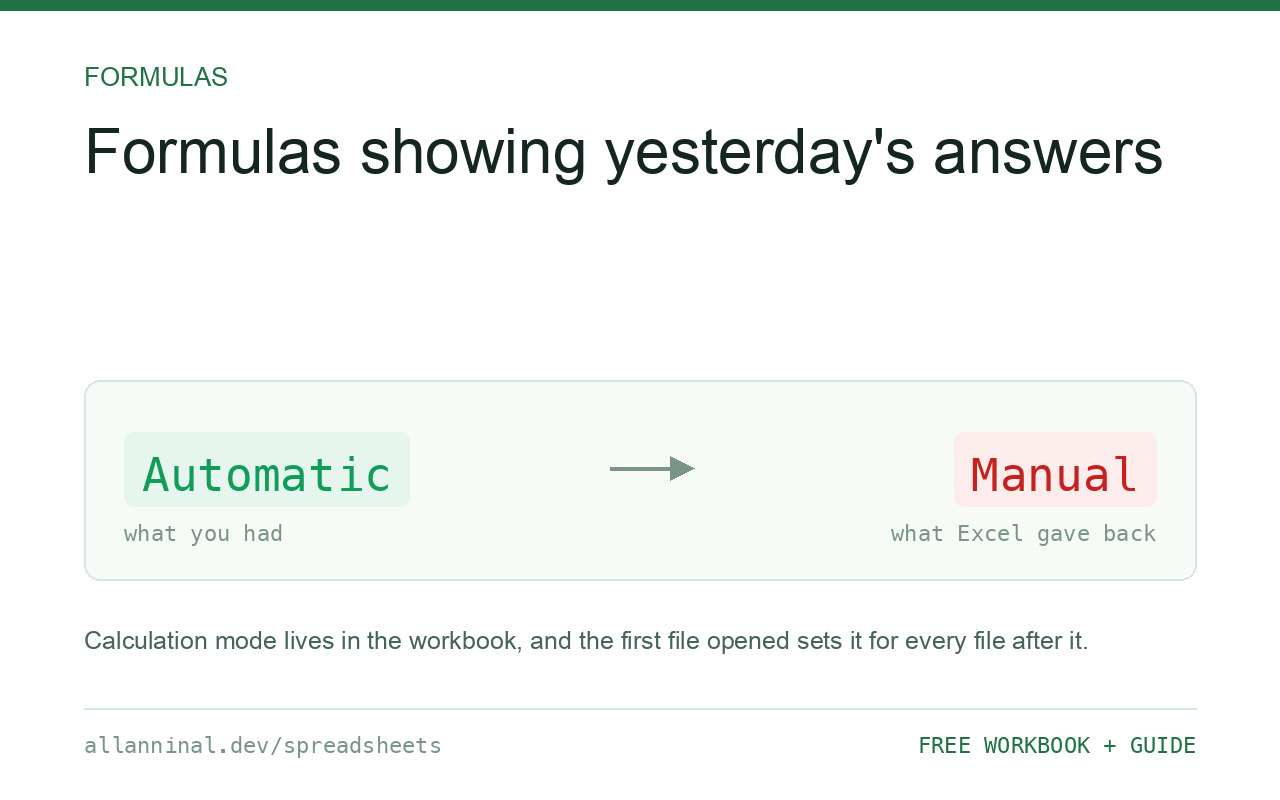
In nine cases out of ten, calculation has been set to Manual. Go to Formulas → Calculation Options → Automatic, or press F9 to force a single recalculation. The setting is saved inside the workbook, and the first workbook opened in a session sets the mode for every workbook opened after it — which is why this seems to happen at random.
Why one workbook can break all the others
Calculation mode is stored in the workbook file, not in your Excel preferences. When Excel starts, the first workbook you open imposes its setting on the whole application, and every workbook opened afterwards in that session inherits it.
So someone sends you a large model that was saved in Manual mode — a reasonable thing to do with a slow workbook — you open it, and then open your own perfectly normal sheet. Yours is now in Manual mode too, and nothing you did caused it.
That is also why saving appears to fix it: saving triggers a recalculation, so the numbers update once and then go stale again.
| What you see | What actually happened | What fixes it |
|---|---|---|
| Values update only when you save | Calculation is Manual; saving forces one pass | Set Calculation Options to Automatic |
Calculate in the status bar | Excel is telling you results are pending | Press F9, then switch to Automatic |
| The formula shows as text in the cell | The cell is formatted as Text, or Show Formulas is on | Format as General and re-enter, or press Ctrl+` |
| Only some cells are stale | Those cells were entered while the format was Text | Reformat and re-enter them |
| Recalculates but the number is unchanged | A circular reference, or an input that did not really change | Check the status bar for a circular reference warning |
How to fix formulas that will not update
Set calculation back to Automatic
Formulas → Calculation Options → Automatic. To force a single pass now, press F9. Shift+F9 does the active sheet only, and Ctrl+Alt+F9 forces a full rebuild of every formula, which is the one to use when you suspect Excel's dependency tree has gone stale.
Then re-save the workbook, so the Automatic setting is what it carries next time.
Check whether the cell is formatted as Text
A cell formatted as Text stores your formula as a string. Changing the format alone does not fix it — the cell has to be re-entered. Set the format to General, click into the cell and press Enter. For a column of them, use Data → Text to Columns → Finish.
Check Show Formulas
If every formula on the sheet displays as text and the columns have gone wide, someone has pressed Ctrl+` (the backtick, next to the 1 key). Press it again. Nothing is wrong with the workbook.
Look for a circular reference
A circular reference stops Excel from resolving part of the sheet. The status bar names the offending cell, and Formulas → Error Checking → Circular References lists them. Until it is broken, results near it stay stale.
Force a full rebuild
Excel keeps a dependency tree so it only recalculates what changed. That tree can go wrong, especially in a workbook edited by several versions of Excel. Ctrl+Alt+F9 ignores it and rebuilds everything.
Everything on this page, as a workbook you can use on your own data
The Excel Data Cleanup Kit — a seven-tab workbook that finds all nine of these faults in a pasted column and hands back a cleaned version, a five-page PDF guide, and a short read-me. Free, no email required.
- Excel-Data-Cleanup-Workbook-Free.xlsx — paste a column, read the diagnosis, take the cleaned output
- Excel-Data-Survival-Guide.pdf — the eight failures, the import routine that prevents them, every formula explained
Plain .xlsx: no macros, no add-ins. Opens in Excel, Google Sheets,
Apple Numbers and LibreOffice Calc.
When Manual mode is the right choice
Manual is not a mistake in every case. A workbook with hundreds of thousands of volatile formulas can take minutes to recalculate, and Manual makes it usable — you edit freely and press F9 when you want the numbers.
If you do that, say so in the workbook. A note on the first tab saying “this file is set to Manual calculation; press F9 to update” takes a moment and saves the next person an hour of believing wrong numbers.
Which functions force constant recalculation
These are volatile: they recalculate on every change anywhere in the workbook, whether or not anything they depend on moved.
NOW,TODAYRAND,RANDBETWEENOFFSET,INDIRECTCELL,INFO
A few are harmless. Thousands of OFFSET calls are the usual reason a workbook became
slow enough that someone reached for Manual mode in the first place. Replacing OFFSET
with INDEX, which is not volatile, is often the real fix.
Google Sheets
Sheets always recalculates automatically and has no Manual mode. Its equivalent complaint is a volatile-function recalculation setting under File → Settings → Calculation.
Questions people ask
Why do my formulas only update when I save?
Calculation is set to Manual. Saving triggers one recalculation pass, so the numbers refresh once and then go stale again. Set Calculation Options to Automatic.
Why did calculation mode change on its own?
It is stored in the workbook, and the first workbook opened in an Excel session sets the mode for every workbook opened afterwards. Opening someone else's Manual-mode file switches yours too.
What does F9 do?
F9 recalculates all open workbooks once. Shift+F9 does the active sheet only, and Ctrl+Alt+F9 forces a full rebuild ignoring the cached dependency tree.
My cell shows the formula instead of the answer. Why?
Either the cell is formatted as Text, in which case set it to General and re-enter the formula, or Show Formulas is switched on for the whole sheet — press Ctrl+` to toggle it.
Is Manual calculation ever a good idea?
Yes, for very large workbooks where every edit would otherwise trigger a long recalculation. If you use it, leave a visible note in the workbook so the next person knows to press F9.
Which functions make a workbook slow?
Volatile ones — NOW, TODAY, RAND, OFFSET, INDIRECT, CELL and INFO — because they recalculate on every change anywhere. Replacing OFFSET with INDEX usually helps most.
Related guides
Take the workbook with you
The Excel Data Cleanup Kit — a seven-tab workbook that finds all nine of these faults in a pasted column and hands back a cleaned version, a five-page PDF guide, and a short read-me. Free, no email required.
- Excel-Data-Cleanup-Workbook-Free.xlsx — paste a column, read the diagnosis, take the cleaned output
- Excel-Data-Survival-Guide.pdf — the eight failures, the import routine that prevents them, every formula explained
Plain .xlsx: no macros, no add-ins. Opens in Excel, Google Sheets,
Apple Numbers and LibreOffice Calc.