Guide Data integrity
The whole CSV opened into a single column
Every row is sitting in column A with the commas or semicolons still in it. The file is not broken and it does not need repairing — Excel simply expected a different separator from the one the file uses.
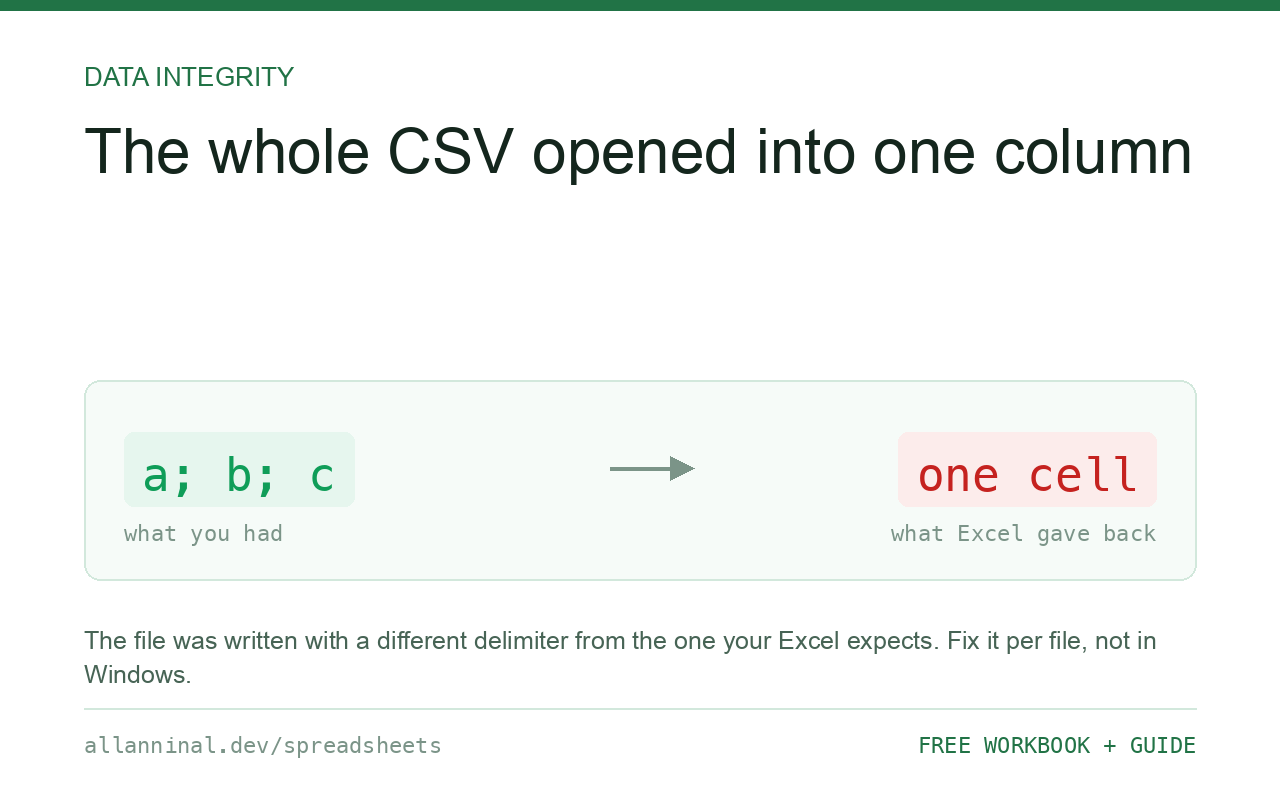
Excel splits a CSV using your Windows list separator, and the file was written with a different one. Most of the English-speaking world uses a comma; much of Europe uses a semicolon, because the comma is the decimal separator there. Fix it per file with Data → From Text/CSV, where you choose the delimiter in the import dialog — rather than changing your regional settings, which would break every other file you own.
Why the file is fine and your settings are the problem
A CSV is a text file with a separator between fields. Which separator counts as “the” separator is not stored in the file — there is no header saying so. Excel decides using the list separator from your Windows regional settings.
In regions where the comma is the decimal separator, using a comma to separate fields would be ambiguous, so the list separator is a semicolon. A file exported there is perfectly valid, and lands in one column on a machine expecting commas. The reverse happens just as often.
This is why the internet's usual answer — change your Windows list separator — is bad advice. It fixes this one file and changes how Excel reads and writes every CSV on the machine from then on.
| What you see | What actually happened | What fixes it |
|---|---|---|
| Every row in column A, commas visible | File is comma-separated, Excel expected semicolons | Import and choose Comma |
| Every row in column A, semicolons visible | File is semicolon-separated, Excel expected commas | Import and choose Semicolon |
| Splits correctly but numbers are wrong | Decimal comma read as a thousands separator, or the reverse | Set the column locale in Power Query |
| Some rows split, others do not | Quoted fields containing the delimiter, handled inconsistently | Import properly — the wizard respects quoting |
| It splits on your machine, not a colleague's | You have different regional list separators | Agree on one format, or send .xlsx instead |
How to open a CSV with the right delimiter
Import with Data → From Text/CSV and pick the delimiter
Data → From Text/CSV, choose the file, and set the Delimiter dropdown to what the file actually uses. The preview shows the result immediately. This affects only this file, which is exactly what you want.
Already open? Use Text to Columns
If the file is already open in one column, you do not need to reopen it. Select column A, then Data → Text to Columns → Delimited, tick the right separator, and finish. Insert empty columns to the right first — the split overwrites whatever is beside it.
While you are on step 3 of that wizard, set your ID columns to Text. It is the same dialog that prevents the leading-zero problem.
Check the decimal separator too
A file with semicolon separators very likely uses a decimal comma as well. In Power Query, right-click the column, choose Change Type → Using Locale, and pick the origin region. Without this the numbers import as text, or worse, as the wrong numbers.
Do not change your Windows list separator
It is the top answer everywhere and it is a trap. It is a machine-wide setting: it silently changes how every future CSV is read and written, so files you export start arriving wrong for everyone else. Per-file import is a few more clicks and has no side effects.
Everything on this page, as a workbook you can use on your own data
The Excel Data Cleanup Kit — a seven-tab workbook that finds all nine of these faults in a pasted column and hands back a cleaned version, a five-page PDF guide, and a short read-me. Free, no email required.
- Excel-Data-Cleanup-Workbook-Free.xlsx — paste a column, read the diagnosis, take the cleaned output
- Excel-Data-Survival-Guide.pdf — the eight failures, the import routine that prevents them, every formula explained
Plain .xlsx: no macros, no add-ins. Opens in Excel, Google Sheets,
Apple Numbers and LibreOffice Calc.
The sep= line
There is one thing a file can do to declare its delimiter. If the very first line is:
sep=;Excel reads it and uses that separator, even on a double-click. It is an Excel-specific convention rather than part of any CSV standard, so other tools may show it as a stray first row — but if your audience is Excel users, it removes the problem completely.
If you are generating the file
You cannot satisfy every region at once with CSV. If the recipient is known to be an Excel user
in a semicolon region, write semicolons and a sep=; line. If the file is going to a
database or a script, write commas and quote every field containing one.
Where the recipient is a person rather than a system, send an .xlsx instead. It carries its own structure, so there is no delimiter to negotiate, no encoding to guess, and no leading zeros to lose.
Google Sheets detects this automatically
Sheets inspects the content and usually picks the right separator regardless of your locale, and its import dialog lets you override it. Uploading a stubborn file to Sheets is a quick way to confirm the file itself is well-formed.
Questions people ask
Why did my CSV open in one column?
Excel split it using your Windows list separator, and the file uses a different one. Comma is common in English-speaking regions, semicolon where the comma is the decimal separator.
Should I change my Windows list separator?
No. It is a machine-wide setting that changes how Excel reads and writes every CSV afterwards, so files you export start breaking for other people. Choose the delimiter per file on import.
Is the file broken?
No. It is a valid CSV written with a different separator convention. Nothing needs repairing — only the way Excel opens it needs changing.
What is the sep= line?
Putting sep=; on the very first line makes Excel use that delimiter even on a double-click. It is an Excel convention rather than a CSV standard, so other tools may display it as a stray row.
Why are my numbers wrong after the columns split correctly?
The file probably uses a decimal comma. In Power Query use Change Type > Using Locale and pick the origin region so the numbers are parsed correctly.
What is the most reliable format to send someone?
An .xlsx file. It carries its own structure and encoding, so there is no delimiter to guess, no encoding to get wrong and no leading zeros to lose.
Related guides
Take the workbook with you
The Excel Data Cleanup Kit — a seven-tab workbook that finds all nine of these faults in a pasted column and hands back a cleaned version, a five-page PDF guide, and a short read-me. Free, no email required.
- Excel-Data-Cleanup-Workbook-Free.xlsx — paste a column, read the diagnosis, take the cleaned output
- Excel-Data-Survival-Guide.pdf — the eight failures, the import routine that prevents them, every formula explained
Plain .xlsx: no macros, no add-ins. Opens in Excel, Google Sheets,
Apple Numbers and LibreOffice Calc.