Guide Lookups
I want the latest reading, wherever the column ends
A column that grows every week, and a summary that should always show the newest value. A fixed reference goes stale the moment somebody adds a row, and a range that is “big enough” finds a blank.
=LOOKUP(2,1/(A:A<>""),A:A) returns the last non-empty
cell in column A, in every version of Excel and in Google Sheets. On Microsoft 365
=TAKE(FILTER(A:A,A:A<>""),-1) reads far more clearly. Both skip gaps, which is why
they beat counting rows — COUNT based approaches break the moment there is a blank
in the middle.
Why counting rows is not enough
The obvious approach is to count how many values there are and go to that row.
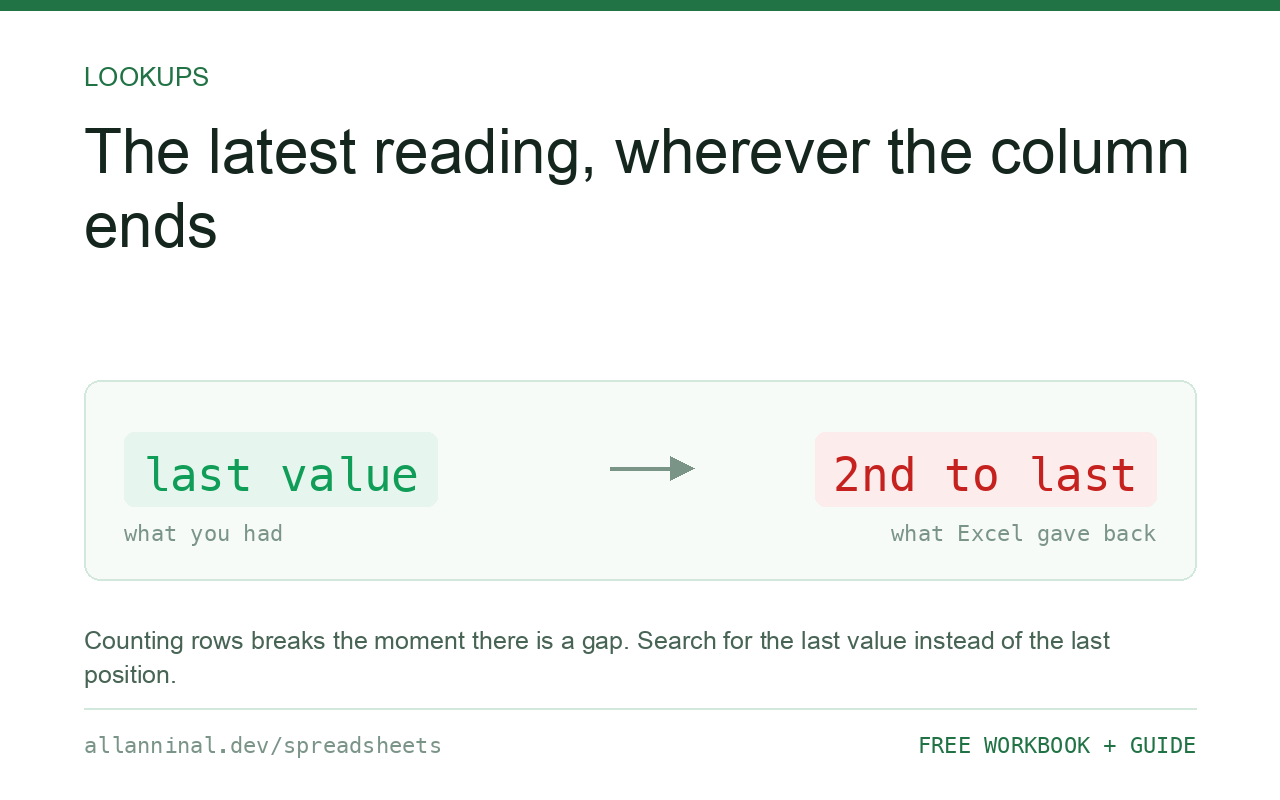
=INDEX(A:A,COUNTA(A:A)) works perfectly until there is a gap.
With a blank in the middle, COUNTA returns one less than the row you want, so you get
the second-to-last value. Nothing errors. The number is simply wrong, and it stays wrong until
somebody notices the summary disagrees with the sheet.
Gaps are normal in real data: a week nobody recorded, a row deleted, a section separated by a blank line for readability. So the method has to find the last value, not the last position.
| What you see | What actually happened | What fixes it |
|---|---|---|
| Getting the second-to-last value | A gap, and a COUNTA-based formula | Use a method that searches for the value |
| Reference goes stale | A fixed cell reference | One of the formulas below |
| Returns 0 | Landed on a genuinely empty cell | Test with <>"", not <>0 |
| Returns a blank-looking value | A formula returned "" | Filter with <>"", which excludes it |
| Slow on a whole column | Over a million cells scanned | Bound the range |
How to find the last non-empty cell
Any version: the LOOKUP form
The same trick as finding a last match, with the test changed:
=LOOKUP(2,1/($A$2:$A$5000<>""),$A$2:$A$5000)Gaps are skipped because a blank produces an error, and LOOKUP settles on
the last value that was not one.
Microsoft 365: TAKE and FILTER
Far easier to read, and to explain to whoever inherits the file:
=TAKE(FILTER(A2:A5000,A2:A5000<>""),-1)-1 means “from the end”. Anyone can work out what this does
at a glance, which the LOOKUP form cannot claim.
Get the value from a different column
The date of the last reading, say, rather than the reading itself:
=LOOKUP(2,1/($B$2:$B$5000<>""),$A$2:$A$5000)Test column B, return from column A. Both ranges must be the same height or the answers come from the wrong rows.
Get the row number instead of the value
When you need the position rather than the value:
=LOOKUP(2,1/($A$2:$A$5000<>""),ROW($A$2:$A$5000))Handy for a named range that resizes itself, though a table (Ctrl+T) does that better and with no formula at all.
Everything on this page, as a workbook you can use on your own data
The Excel Data Cleanup Kit — a seven-tab workbook that finds all nine of these faults in a pasted column and hands back a cleaned version, a five-page PDF guide, and a short read-me. Free, no email required.
- Excel-Data-Cleanup-Workbook-Free.xlsx — paste a column, read the diagnosis, take the cleaned output
- Excel-Data-Survival-Guide.pdf — the eight failures, the import routine that prevents them, every formula explained
Plain .xlsx: no macros, no add-ins. Opens in Excel, Google Sheets,
Apple Numbers and LibreOffice Calc.
A table is usually the better answer
If the column grows because rows are appended, format the range as a table with Ctrl+T. A table's own reference grows with it, so charts, formulas and pivot tables all follow automatically and no last-cell formula is needed.
Reach for these formulas when a table is not possible — a fixed layout, a protected sheet, or data with deliberate gaps in it.
Last non-empty in a row
Same shape, sideways: =LOOKUP(2,1/(A2:Z2<>""),A2:Z2). Useful for a report with a
column per month, to show the most recent month that has data.
Beware formula blanks
A cell holding =IF(x,"",y) looks empty and is not. The <>"" test
used here correctly excludes it. A test of <>0 would not, and would return an
empty-looking answer.
Whole columns are slow
A:A scans over a million cells every recalculation. One is unnoticeable; twenty in a
workbook is not. Bound them to a realistic maximum.
Questions people ask
How do I get the last value in a column?
Use =LOOKUP(2,1/(range<>""),range) in any version, or =TAKE(FILTER(range,range<>""),-1) on Microsoft 365, which is much easier to read.
Why does INDEX with COUNTA give the wrong answer?
COUNTA counts values, not positions. With a gap in the column, the count is smaller than the row you want, so you get an earlier value.
Does this skip blank cells in the middle?
Yes. Both methods search for the last cell that is not empty rather than counting rows, so gaps do not matter.
How do I get the value from another column?
Test the key column and return from the other one: =LOOKUP(2,1/(B:B<>""),A:A). Both ranges must be the same height.
Should I use a table instead?
Usually yes, if the column simply grows by appending. A table's reference grows with it, so nothing needs a last-cell formula at all.
Why is my workbook slow after adding these?
Whole-column references scan over a million cells on every recalculation. Bound them to a realistic maximum row.
Related guides
Take the workbook with you
The Excel Data Cleanup Kit — a seven-tab workbook that finds all nine of these faults in a pasted column and hands back a cleaned version, a five-page PDF guide, and a short read-me. Free, no email required.
- Excel-Data-Cleanup-Workbook-Free.xlsx — paste a column, read the diagnosis, take the cleaned output
- Excel-Data-Survival-Guide.pdf — the eight failures, the import routine that prevents them, every formula explained
Plain .xlsx: no macros, no add-ins. Opens in Excel, Google Sheets,
Apple Numbers and LibreOffice Calc.