Guide Data integrity
Excel turned my barcode into 1.23E+14
Long reference numbers arrive as scientific notation, and formatting them back reveals a second problem: past the fifteenth digit, the rest have been replaced by zeros. That part is permanent.
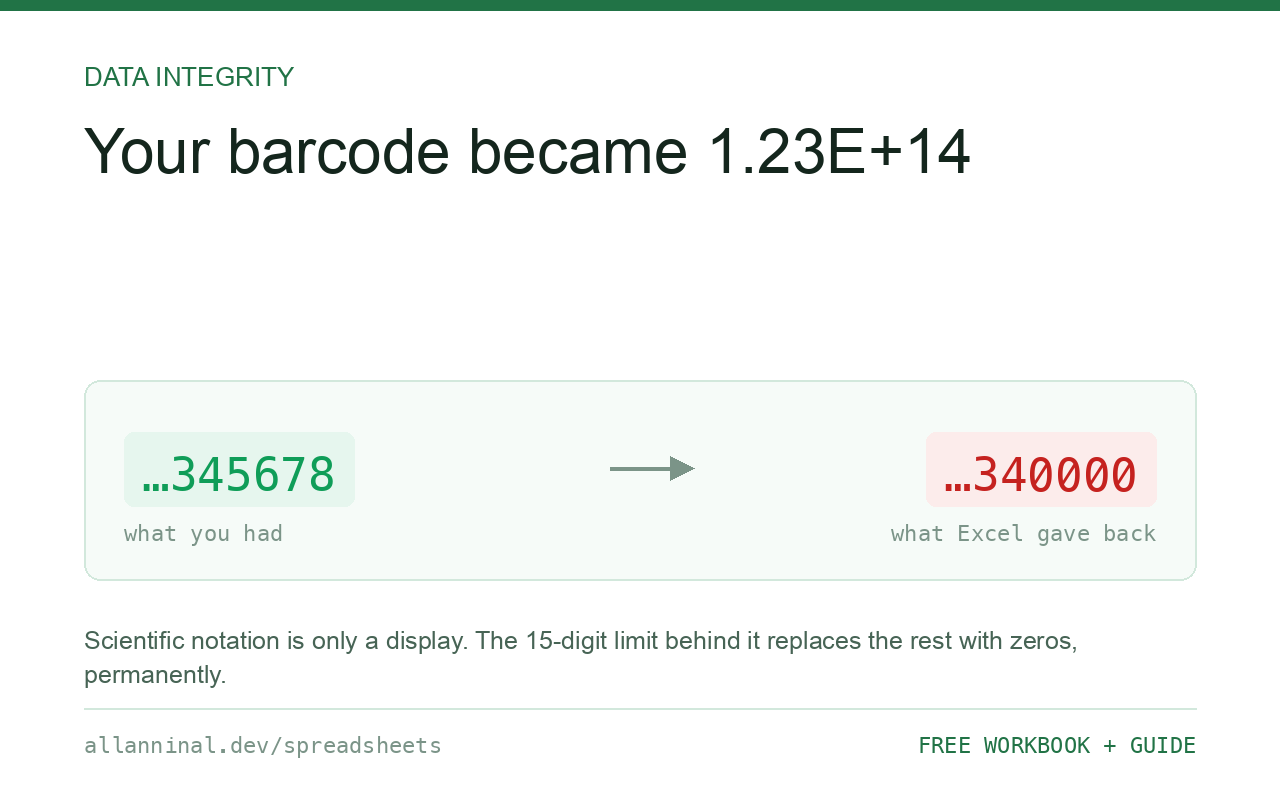
There are two separate problems here. Scientific notation is only a display format and is reversible. The real damage is Excel's 15-significant-digit limit: any digit past the fifteenth is replaced by a zero, permanently, and no formatting brings it back. A 16-digit card number or an 18-digit tracking reference is truncated the moment it is read as a number. Import the column as Text and neither problem occurs.
The cosmetic problem and the permanent one
Scientific notation is Excel shortening a long number to fit the
column. 123456789012345 becomes 1.23457E+14. The value is intact; widening
the column or applying a Number format shows it again. Annoying, not harmful.
The 15-digit limit is different. Excel stores numbers as IEEE 754 doubles, which hold about 15 significant decimal digits. A 16-digit card number loses its sixteenth digit — replaced with a zero. An 18-digit tracking reference loses three. This happens at the moment the text is parsed into a number, and the discarded digits are not stored anywhere.
So 4532015112830366 becomes 4532015112830360. It still looks like a card
number. It is simply the wrong one, and no formula recovers it — the information is not in the
workbook any more.
| What you see | What actually happened | What fixes it |
|---|---|---|
1.23E+14 in the cell | Display format only — the value is intact | Widen the column or apply a Number format |
| Number ends in 0 where it should not | Past 15 significant digits; the rest were replaced | Re-import as Text — not recoverable in place |
##### across the cell | Column too narrow for the formatted number | Widen the column; nothing is damaged |
| Last digits differ from the source file | The 15-digit limit truncated them on import | Re-import the original with the column as Text |
| Barcode scans as a different product | A digit was replaced, so the check digit no longer matches | Re-import as Text and re-verify |
How to keep long numbers intact in Excel
Import the column as Text
Data → From Text/CSV → Transform Data, select the column, Data Type → Text, Close & Load. The digits are never parsed as a number, so the limit never applies. This is the only method that is safe for 16+ digits.
Format the destination as Text before pasting
Select the empty column, Format Cells → Text, then paste. As with leading zeros, the order decides the outcome: format first and the digits survive, format afterwards and you are formatting a number that has already lost them.
Check whether truncation has already happened
Count what you actually have:
=LEN(TRIM(A2))Compare against the length the identifier should be. Anything at or above 16 digits that was read as a number is suspect — check the last digits against the source file before using it.
If it is already truncated, go back to the original
There is no repair. The digits were discarded during parsing and the workbook has no record of them. The original CSV or export is still correct — re-import it with the column as Text. If the original is gone, the data is gone.
Everything on this page, as a workbook you can use on your own data
The Excel Data Cleanup Kit — a seven-tab workbook that finds all nine of these faults in a pasted column and hands back a cleaned version, a five-page PDF guide, and a short read-me. Free, no email required.
- Excel-Data-Cleanup-Workbook-Free.xlsx — paste a column, read the diagnosis, take the cleaned output
- Excel-Data-Survival-Guide.pdf — the eight failures, the import routine that prevents them, every formula explained
Plain .xlsx: no macros, no add-ins. Opens in Excel, Google Sheets,
Apple Numbers and LibreOffice Calc.
Which identifiers are affected
- Payment card numbers — 16 digits. Always truncated.
- IMEI numbers — 15 digits. Right at the boundary.
- Tracking references — often 18 to 22 digits.
- EAN-13 and UPC barcodes — 12 to 13 digits, usually safe, but they also lose leading zeros.
- Bank account numbers with IBAN — well past the limit.
The pattern is the same as everywhere else on this site: these are identifiers, not quantities. You will never add two barcodes together. Nothing that you would not do arithmetic on should be stored as a number.
Why the limit exists
Excel stores numbers in the IEEE 754 double-precision format, which allocates 53 bits to the significand — roughly 15 to 17 significant decimal digits. Excel rounds to 15 for consistency. This is a deliberate engineering trade-off in a format designed for measurement and calculation, and it is shared by Google Sheets, LibreOffice and most programming languages. It only becomes a bug when a number is being used as a name.
Displaying a long number that is genuinely a number
If a value really is a quantity and you only want to stop the scientific notation, a custom
number format of 0 forces full digits without changing the stored value. That is purely
cosmetic and does nothing about the 15-digit limit.
Questions people ask
Is scientific notation damaging my data?
No. Scientific notation is a display format and the stored value is intact. The damage is the separate 15-significant-digit limit, which truncates longer numbers permanently.
Why does my 16-digit number end in 0?
Excel stores numbers with about 15 significant digits. The sixteenth digit onward is replaced with a zero when the text is parsed as a number, and it is not stored anywhere.
Can I recover the truncated digits?
Not from the workbook — they were never stored. The original file is still correct, so re-import it with the column set to Text.
Does formatting the cell as Number fix it?
It removes the scientific notation display, but it cannot restore digits that were discarded during parsing. Formatting only changes how a stored value is shown.
Why does this happen in Google Sheets too?
Sheets uses the same IEEE 754 double-precision storage and has the same practical limit. Setting the column to Plain text before import avoids it there as well.
What about #### across the cell?
That is only the column being too narrow for the formatted value. Widen the column; nothing has been changed.
Related guides
Take the workbook with you
The Excel Data Cleanup Kit — a seven-tab workbook that finds all nine of these faults in a pasted column and hands back a cleaned version, a five-page PDF guide, and a short read-me. Free, no email required.
- Excel-Data-Cleanup-Workbook-Free.xlsx — paste a column, read the diagnosis, take the cleaned output
- Excel-Data-Survival-Guide.pdf — the eight failures, the import routine that prevents them, every formula explained
Plain .xlsx: no macros, no add-ins. Opens in Excel, Google Sheets,
Apple Numbers and LibreOffice Calc.