Guide Formulas
I need a list of the distinct values in this column
Every method you find online assumes a different version of Excel, and half of them modify your data in place. Here is which one to use, and what each does to the original column.
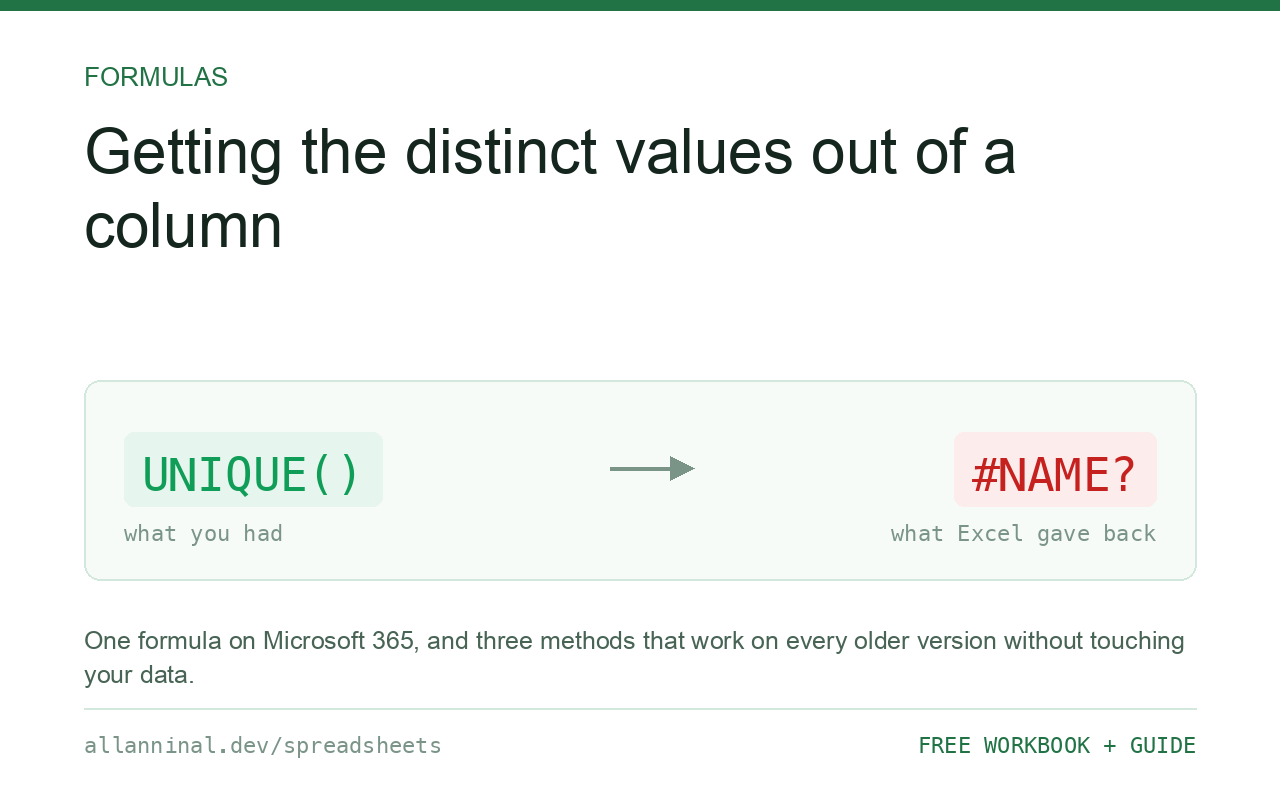
On Microsoft 365 or Excel 2021, use =UNIQUE(A2:A500)
— one formula, spills automatically, updates when the source changes. On any older
version, use Data → Remove Duplicates on a copy of the column, or Advanced
Filter with “Unique records only” to write the distinct list somewhere else without
touching the original. A pivot table also lists distinct values as row labels.
Pick by two questions: which Excel, and may the original change?
Everything else follows from those two answers.
Remove Duplicates deletes rows in place. It is the top search result and the most destructive option — it modifies your data and cannot be undone once the file is saved and closed. Always run it on a copy.
Advanced Filter can write the unique list to a different location, leaving the source intact. It is the right non-destructive answer for older Excel and almost nobody knows it exists.
UNIQUE is a formula, so it never touches the source and updates on
its own. It needs Microsoft 365 or Excel 2021 — and it does not exist in LibreOffice, which
matters if you share the file.
| What you see | What actually happened | What fixes it |
|---|---|---|
#NAME? from UNIQUE | Your Excel version does not have the function | Use Advanced Filter or Remove Duplicates |
#SPILL! from UNIQUE | Something is blocking the range it needs to fill | Clear the cells below and to the right |
| Blanks appear in the unique list | The source range includes empty cells | Filter them out, or narrow the range |
| Values that look identical listed twice | They differ by a trailing or non-breaking space | Clean the column first |
| Remove Duplicates deleted data | It works in place and deletes whole rows | Undo now; work on a copy |
How to get a unique list of values
Microsoft 365 or Excel 2021: use UNIQUE
One formula, and it stays live:
=UNIQUE(A2:A500)The result spills down as far as it needs to. Wrap it in SORT to order
the list: =SORT(UNIQUE(A2:A500)). Nothing is written to the source column.
Any version, non-destructive: Advanced Filter
Select the column, then Data → Advanced. Choose Copy to another location, tick Unique records only, and set a destination. The distinct values are written there and the source is untouched.
This is the method to use on Excel 2019 and earlier. It is a one-off snapshot, so re-run it when the data changes.
Any version, destructive: Remove Duplicates
Copy the column to a new sheet first. Then Data → Remove Duplicates. It is fast and simple, and it permanently deletes rows from wherever you run it. Excel reports how many were removed — read that number and check it is what you expected.
Count the distinct values without listing them
When you only need the number:
=SUMPRODUCT((A2:A500<>"")/COUNTIF(A2:A500,A2:A500&""))Each value contributes 1 divided by how many times it appears, so every distinct
value sums to exactly 1. The &"" and the <>"" test are what stop
empty cells causing a #DIV/0!. On 365, =COUNTA(UNIQUE(A2:A500)) is
clearer.
Everything on this page, as a workbook you can use on your own data
The Excel Data Cleanup Kit — a seven-tab workbook that finds all nine of these faults in a pasted column and hands back a cleaned version, a five-page PDF guide, and a short read-me. Free, no email required.
- Excel-Data-Cleanup-Workbook-Free.xlsx — paste a column, read the diagnosis, take the cleaned output
- Excel-Data-Survival-Guide.pdf — the eight failures, the import routine that prevents them, every formula explained
Plain .xlsx: no macros, no add-ins. Opens in Excel, Google Sheets,
Apple Numbers and LibreOffice Calc.
Clean before you dedupe
Every one of these methods compares values exactly as stored. Acme Ltd and
Acme Ltd with a trailing space are two different values to all of them, so your
“unique” list quietly contains the same company twice.
Clean the column first — that is the whole reason the free workbook below exists. Dedupe afterwards.
Case sensitivity
None of these methods is case-sensitive. ACME, Acme and
acme collapse into one entry, and which spelling survives depends on the method. If case
matters, add a helper column with EXACT comparisons before deduplicating.
Unique across two columns
To find distinct combinations rather than distinct single values, UNIQUE accepts a
multi-column range directly: =UNIQUE(A2:B500) returns the distinct pairs. On
older Excel, concatenate the columns into a helper first and deduplicate that.
Google Sheets
Sheets has UNIQUE and has had it far longer than Excel, so it is always available
there. It also has COUNTUNIQUE, which has no Excel equivalent.
Questions people ask
How do I get unique values in Excel?
On Microsoft 365 or Excel 2021 use =UNIQUE(A2:A500). On older versions use Advanced Filter with 'Unique records only', which writes the list elsewhere without changing your data.
Why does UNIQUE give me a #NAME? error?
The function does not exist in your version of Excel. It requires Microsoft 365 or Excel 2021, and it is not available in LibreOffice.
Does Remove Duplicates change my data?
Yes. It deletes rows in place and cannot be undone once the file has been saved and closed. Always run it on a copy of the column.
Why are values that look identical listed twice?
They differ by a character you cannot see, usually a trailing or non-breaking space. Every deduplication method compares values exactly as stored, so clean the column first.
Is UNIQUE case-sensitive?
No. ACME, Acme and acme are treated as the same value by all of these methods. If case matters, compare with EXACT in a helper column first.
How do I count distinct values without listing them?
Use =SUMPRODUCT((A2:A500<>"")/COUNTIF(A2:A500,A2:A500&"")) on any version, or =COUNTA(UNIQUE(A2:A500)) on Microsoft 365.
Related guides
Take the workbook with you
The Excel Data Cleanup Kit — a seven-tab workbook that finds all nine of these faults in a pasted column and hands back a cleaned version, a five-page PDF guide, and a short read-me. Free, no email required.
- Excel-Data-Cleanup-Workbook-Free.xlsx — paste a column, read the diagnosis, take the cleaned output
- Excel-Data-Survival-Guide.pdf — the eight failures, the import routine that prevents them, every formula explained
Plain .xlsx: no macros, no add-ins. Opens in Excel, Google Sheets,
Apple Numbers and LibreOffice Calc.