Guide Data integrity
My VLOOKUP says #N/A but I can see the value in the list
The value is sitting there in the lookup range. You have checked it three times. The match still fails — because the two strings are not actually identical, and the difference is a character you cannot see.
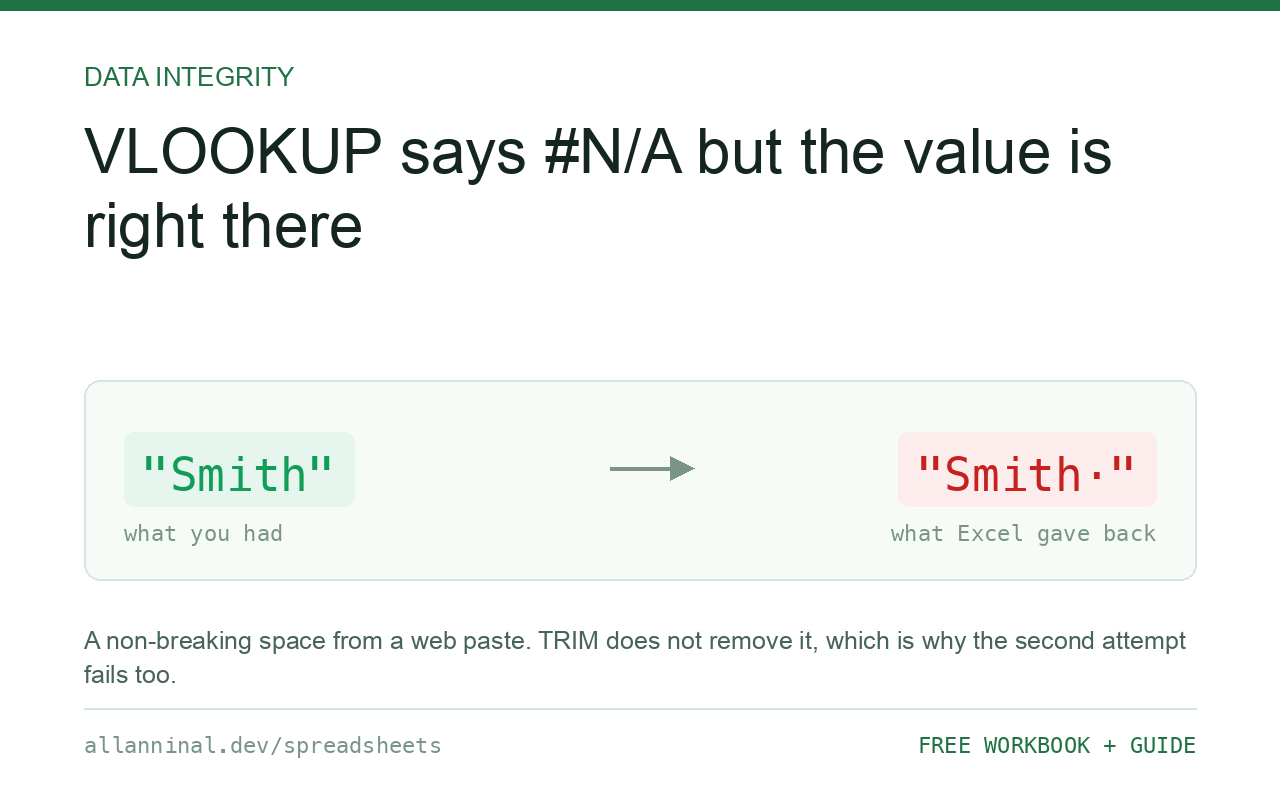
An exact-match lookup compares the strings byte for byte, so a
trailing space or a non-breaking space makes two values that look identical fail to match.
TRIM alone does not fix it: TRIM only removes ordinary spaces, and text
pasted from a web page usually contains a non-breaking space, which is a different
character. Substitute the invisible characters first, then CLEAN, then
TRIM — in that order.
Three different invisible characters, three different fixes
“There is a space in it” is usually right but rarely specific enough. There are three distinct culprits and only one of them is what people mean by a space:
- Ordinary space (character 32) at the start or end.
TRIMremoves these, and this is the case everyone knows about. - Non-breaking space (U+00A0). Arrives with anything pasted from a web page or a
PDF.
TRIMdoes not touch it, because it is not an ordinary space. This is the one that produces the “I already trimmed it and it still fails” afternoon. - Zero-width space (U+200B) and control characters. Arrive from ERP and PDF exports. Occupy no width at all, so the cell looks completely normal.
CLEAN removes control characters but not the non-breaking space either — a
non-breaking space is a printing character as far as Excel is concerned. So the standard
advice, TRIM(CLEAN(A2)), misses the most common cause.
| What you see | What actually happened | What fixes it |
|---|---|---|
| #N/A but the value is visibly present | The two strings differ by a character you cannot see | Clean both sides, then match |
TRIM made no difference | A non-breaking space is not an ordinary space | SUBSTITUTE the character out first |
=A2=B2 returns FALSE for identical-looking text | Confirms the strings genuinely differ | Compare LEN to find the extra character |
| It works after you retype the value by hand | Retyping produced clean characters; the imported one was dirty | Clean the column rather than retyping it |
| Only some rows fail | Only some values were pasted from the dirty source | Clean the whole column, not the failing rows |
How to fix a lookup that fails on invisible characters
Confirm the strings really do differ
Before changing anything, prove the cause:
=A2=B2 =LEN(A2) =LEN(B2)FALSE with different lengths means there are extra characters. FALSE with the same length means a character has been substituted — typically an ordinary space replaced by a non-breaking one.
Identify the character
To see exactly what you are dealing with:
=CODE(RIGHT(A2,1))32 is an ordinary space, 160 is a non-breaking
space, and anything below 32 is a control character. Knowing which one tells you whether
TRIM can help at all.
Clean with the chain in the correct order
Order matters and this is the whole trick. Replace the invisible characters first
— while they are still there to be replaced — then let CLEAN and
TRIM do their work:
=TRIM(CLEAN(SUBSTITUTE(SUBSTITUTE(A2,"[nbsp]"," "),"[zwsp]","")))[nbsp] and [zwsp] stand for the literal invisible
characters. Copy one out of your own data to type them, or use the free workbook below, which
already has them in place.
Clean both sides, then match
This is the step people miss. Cleaning your lookup value while the lookup column is still dirty changes nothing. Add a cleaned helper column beside the lookup range, point the lookup at that, and clean the search value the same way.
Everything on this page, as a workbook you can use on your own data
The Excel Data Cleanup Kit — a seven-tab workbook that finds all nine of these faults in a pasted column and hands back a cleaned version, a five-page PDF guide, and a short read-me. Free, no email required.
- Excel-Data-Cleanup-Workbook-Free.xlsx — paste a column, read the diagnosis, take the cleaned output
- Excel-Data-Survival-Guide.pdf — the eight failures, the import routine that prevents them, every formula explained
Plain .xlsx: no macros, no add-ins. Opens in Excel, Google Sheets,
Apple Numbers and LibreOffice Calc.
Why CHAR(160) is the wrong advice
Nearly every article recommends SUBSTITUTE(A2,CHAR(160)," "). Inside Excel it works.
Outside Excel it does not, and it fails silently — the formula runs, reports success,
and leaves the character in place.
Tested in LibreOffice, CODE(CHAR(160)) returns 239, not 160. So
CHAR(160) is not producing a non-breaking space at all, and the substitution matches
nothing. UNICHAR(160) is not available there either. If your workbook is ever opened in
LibreOffice, Numbers, or by a colleague who does not use Excel, a CHAR(160)-based
cleanup will report their data clean when it is not.
Putting the literal character inside the quotes needs no character-set function at all and behaves identically everywhere. That is what the workbook does.
Fix the data, not the formula
Wrapping every lookup in a cleaning chain works, but it hides the problem and slows large sheets down. Clean the column once, paste the result back over itself with Paste Special → Values, and every lookup that touches it afterwards is simple again.
XLOOKUP does not rescue you
XLOOKUP is a better function in most respects, but its default match mode is exact,
so it fails on invisible characters exactly like VLOOKUP. The problem is the data, not
the function.
Questions people ask
Why does my VLOOKUP fail when I can see the value?
Exact match compares strings character by character. A trailing space, a non-breaking space or a zero-width character makes two identical-looking values different, so the match fails.
Why did TRIM not fix it?
TRIM removes ordinary spaces (character 32). A non-breaking space is character 160 — a different character that TRIM leaves alone. Substitute it out before trimming.
Why is CHAR(160) not reliable?
It works in Excel but not elsewhere. In LibreOffice, CODE(CHAR(160)) returns 239, so the substitution matches nothing and silently reports the data clean. Use the literal character instead.
How do I type a non-breaking space into a formula?
Copy one out of your own data and paste it between the quotes. The free workbook already contains it, so you can lift the formula from there.
Does XLOOKUP handle this better than VLOOKUP?
No. XLOOKUP defaults to exact match and fails the same way. The problem is in the data, not in the lookup function.
Should I clean inside every formula, or clean the column once?
Clean the column once and paste the result back as values. Wrapping every lookup in a cleaning chain hides the problem and slows large workbooks down.
Related guides
Take the workbook with you
The Excel Data Cleanup Kit — a seven-tab workbook that finds all nine of these faults in a pasted column and hands back a cleaned version, a five-page PDF guide, and a short read-me. Free, no email required.
- Excel-Data-Cleanup-Workbook-Free.xlsx — paste a column, read the diagnosis, take the cleaned output
- Excel-Data-Survival-Guide.pdf — the eight failures, the import routine that prevents them, every formula explained
Plain .xlsx: no macros, no add-ins. Opens in Excel, Google Sheets,
Apple Numbers and LibreOffice Calc.