Guide Worked examples
Cleaning a contact export before you send anything
A contact list assembled from a CRM, a web form and a conference badge scanner has three different ideas of what a phone number looks like, and enough invisible characters to break every deduplication you attempt.
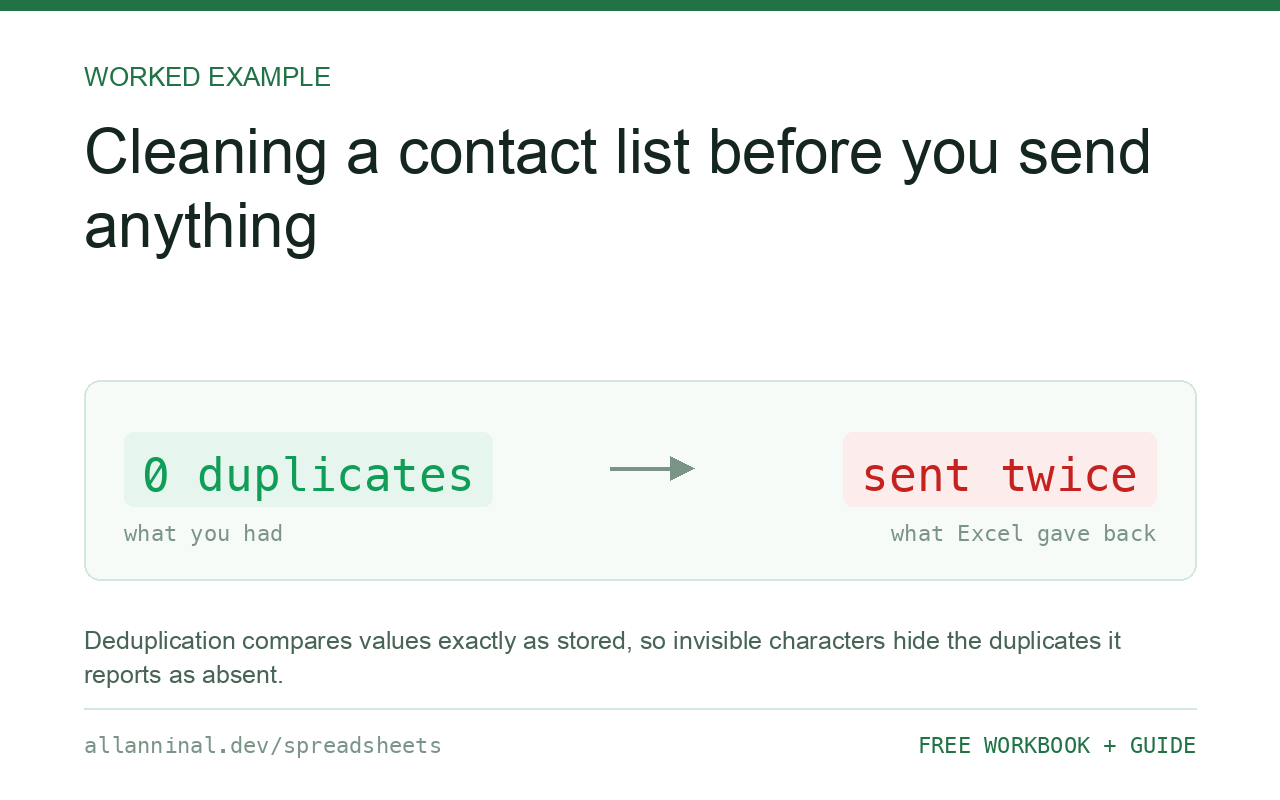
Clean before you deduplicate, in that order — deduplicating dirty
data leaves the duplicates in place and hides them. Contact exports are the single worst
source of non-breaking spaces, because so much of the data was pasted from web pages and email
signatures. TRIM alone will not remove those, so two identical-looking records survive
deduplication as separate contacts and both get the email.
Why deduplication silently fails on contact data
Every deduplication method in Excel — Remove Duplicates,
COUNTIF, UNIQUE — compares values exactly as stored. Two records for
jane@example.com where one has a trailing non-breaking space are two different values,
so both survive.
You then run Remove Duplicates, it reports “0 duplicates found”, and you reasonably conclude the list is clean. It is not; the duplicates are simply invisible to the comparison. Jane gets the email twice, which is the visible symptom of a problem that was reported as absent.
Contact data is unusually prone to this because of where it comes from: pasted from an email signature, copied off a web page, typed into a form on a phone, scanned from a badge. Each of those routes contributes its own whitespace.
| What you see | What actually happened | What fixes it |
|---|---|---|
| Remove Duplicates finds nothing, duplicates remain | The values differ by invisible characters | Clean first, then deduplicate |
| Same person listed twice | One record has trailing whitespace | Clean the email column and re-check |
| Mail merge greeting is blank | The first-name field is empty or whitespace only | Test with =TRIM(A2)="" |
| Phone numbers in several formats | Different capture routes, no normalisation | Strip to digits and reformat |
| Emails rejected by the sending tool | Trailing spaces or a stray character | Trim and validate before upload |
How to clean a contact export
Clean the email column first
Email is the deduplication key, so it gets cleaned first and most carefully. Email
addresses are case-insensitive in practice, so lower-casing prevents
Jane@Example.com and jane@example.com surviving as two contacts:
=LOWER(TRIM(CLEAN(SUBSTITUTE(SUBSTITUTE(A2,"[nbsp]"," "),"[zwsp]",""))))Substitute the invisible characters first — TRIM cannot see them.
This single step is what makes the deduplication that follows actually work.
Now deduplicate on the cleaned column
Flag rather than delete, so you can look before committing:
=IF(COUNTIF($D$2:$D$5000,D2)>1,"DUPLICATE","")Where column D holds the cleaned email. Sort on the flag and check which record to keep — usually the one with the most complete fields or the most recent activity date, not simply the first.
Normalise phone numbers to digits, then reformat
Comparing phone numbers is impossible while one is
(555) 123-4567 and another is 555.123.4567. Reduce both to digits:
=SUBSTITUTE(SUBSTITUTE(SUBSTITUTE(SUBSTITUTE(SUBSTITUTE(
   TRIM(A2)," ",""),"(",""),")",""),"-",""),".","")
Keep the leading + if you have international numbers — it is the
only non-digit that carries meaning. Store the result as text, because a phone number with a leading
zero is exactly the case that loses it.
Check for empty-looking name fields
A field containing only a space is not empty, and ISBLANK will not
catch it:
=IF(TRIM(A2)="","MISSING","")Catches genuinely empty cells, whitespace-only cells, and formula-returned empty strings. Fix these before merging — “Dear ,” is worse than not sending.
Sanity-check the email addresses
Not full validation, but it catches the common damage:
=IF(AND(ISNUMBER(SEARCH("@",D2)),
   ISNUMBER(SEARCH(".",MID(D2,SEARCH("@",D2),99)))),"ok","CHECK")
Requires an @ and a dot somewhere after it. Filter on CHECK
and look at those rows — most sending platforms reject an entire upload for a handful of
malformed addresses.
Everything on this page, as a workbook you can use on your own data
The Excel Data Cleanup Kit — a seven-tab workbook that finds all nine of these faults in a pasted column and hands back a cleaned version, a five-page PDF guide, and a short read-me. Free, no email required.
- Excel-Data-Cleanup-Workbook-Free.xlsx — paste a column, read the diagnosis, take the cleaned output
- Excel-Data-Survival-Guide.pdf — the eight failures, the import routine that prevents them, every formula explained
Plain .xlsx: no macros, no add-ins. Opens in Excel, Google Sheets,
Apple Numbers and LibreOffice Calc.
Which duplicate to keep
Remove Duplicates keeps the first occurrence and deletes the rest, which is rarely the right choice. The first row is simply the one that happened to be highest in the file.
Sort by a meaningful column first — last activity date, or completeness — so that the record you want to survive is the one at the top. Better still, flag duplicates as above and merge the fields by hand where the count is small enough. A contact list is usually small enough.
Do not lower-case anything except the email
Lower-casing is safe for email because addresses are treated case-insensitively. Applying it to
names produces jane mcdonald, and PROPER then gives you
Jane Mcdonald. Leave name capitalisation alone unless it is clearly wrong, and fix those
rows individually.
Keep the raw export
Cleaning is lossy. Save the original export alongside the cleaned file so that a contact who says their details are wrong can be traced back to what the system actually held.
Questions people ask
Why does Remove Duplicates say there are no duplicates when I can see them?
The values differ by characters you cannot see, usually a trailing or non-breaking space. Every deduplication method compares values exactly as stored, so clean the column first.
Why does TRIM not fix my contact data?
TRIM removes ordinary spaces. Data pasted from web pages and email signatures usually contains non-breaking spaces, which are a different character that TRIM leaves in place.
Should I lower-case my contact data?
Only the email column. Addresses are case-insensitive so lower-casing prevents false duplicates. Applying it to names destroys correct capitalisation that PROPER cannot reliably restore.
Which duplicate record should I keep?
Not necessarily the first. Remove Duplicates keeps whichever row is highest in the file. Sort by last activity or completeness first, or flag duplicates and merge the fields by hand.
How should I store phone numbers?
As text, reduced to digits with any leading + preserved. Stored as numbers they lose leading zeros, which affects most international formats.
How do I catch blank names before a mail merge?
Test with =TRIM(A2)="", which catches genuinely empty cells, whitespace-only cells and formula-returned empty strings. ISBLANK misses the last two.
Related guides
Take the workbook with you
The Excel Data Cleanup Kit — a seven-tab workbook that finds all nine of these faults in a pasted column and hands back a cleaned version, a five-page PDF guide, and a short read-me. Free, no email required.
- Excel-Data-Cleanup-Workbook-Free.xlsx — paste a column, read the diagnosis, take the cleaned output
- Excel-Data-Survival-Guide.pdf — the eight failures, the import routine that prevents them, every formula explained
Plain .xlsx: no macros, no add-ins. Opens in Excel, Google Sheets,
Apple Numbers and LibreOffice Calc.