Guide Worked examples
Cleaning a class list so the IDs still match
The register downloads, the student numbers have lost their leading zeros, and half the names are in one column while the rest are in two. Every merge against another system now fails.
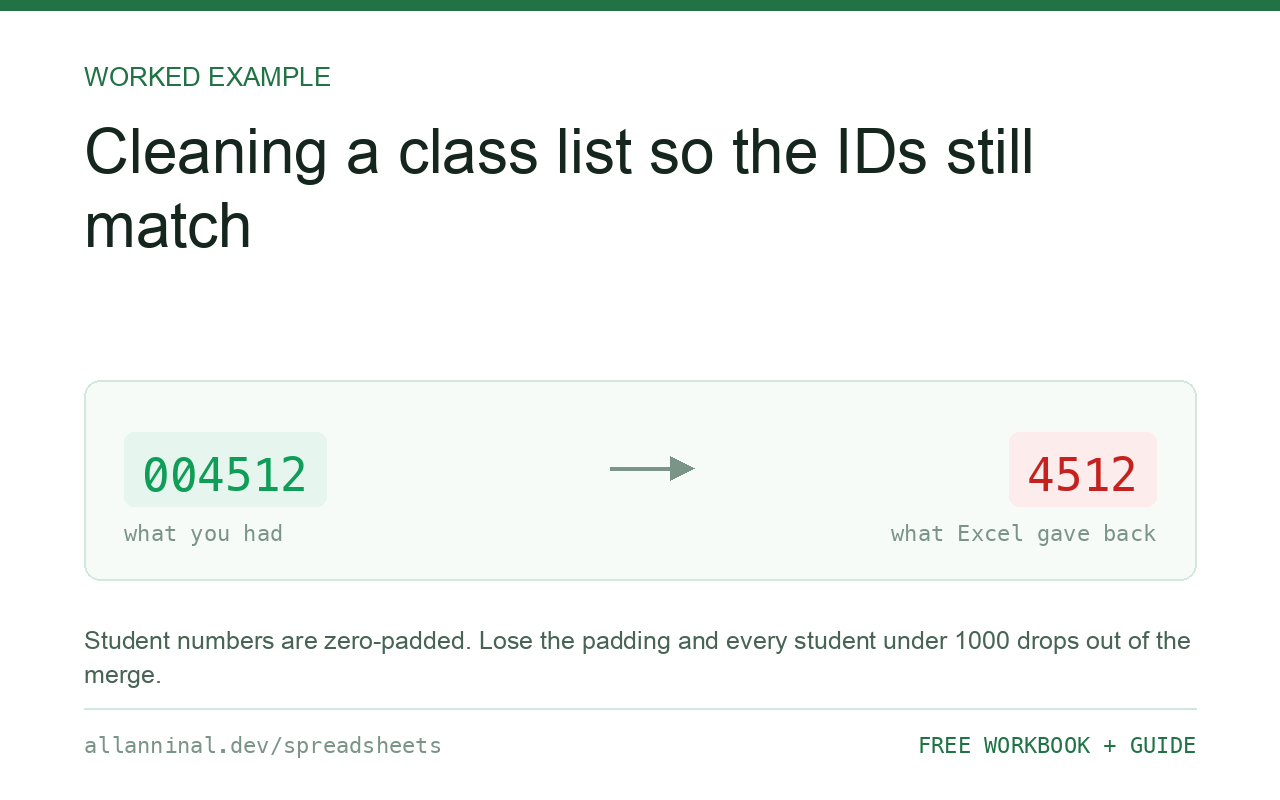
Fix the student ID column before anything else, and fix it by
re-importing rather than by formatting. Student numbers such as 004512 lose
their leading zeros the moment Excel reads them as numbers, and every match against the timetable,
the library system or last term's file then fails. Import with the ID column set to Text,
then normalise the name columns.
Why the ID column has to come first
Everything else you do to this file depends on the ID still being the ID.
Student numbers are almost always zero-padded to a fixed width, because that is what makes them
sort correctly and print evenly. Excel sees digits, decides it is a number, and stores 4512. The
match against any other system — which still holds 004512 — now fails for
every student whose number begins with a zero, which is a large and arbitrary-looking subset of the
class.
It is arbitrary-looking that makes it expensive: students 1 to 999 fail and the rest work, so it presents as “some students are missing” rather than as a formatting problem.
| What you see | What actually happened | What fixes it |
|---|---|---|
| Some students missing from a merge | Their IDs lost leading zeros | Re-import the ID column as Text |
| IDs of differing lengths | Zeros stripped from some, not others | Same cause — re-import |
| Names in one column for some rows, two for others | The export changed format, or was hand-edited | Normalise to one shape |
| Mail merge greeting shows a surname | The first-name column contains a full name | Split before merging |
| Duplicate students after combining files | Trailing spaces on the name or ID | Clean before deduplicating |
How to clean a class list export
Re-import with the student ID column set to Text
Data → From Text/CSV → Transform Data, select the student ID column, Data Type → Text, Close & Load. Formatting the column afterwards cannot restore a zero that was never stored, so this must happen on import.
If the original is gone, rebuild a fixed-width ID
Only when the length is genuinely fixed and you know it:
=TEXT(A2,"000000")Six zeros for a six-digit number. If your school's numbers vary in length, this pads them all to the same width and silently creates wrong IDs — go back to the source export instead.
Find the rows where the name shape is inconsistent
Before splitting anything, find out what shapes you actually have:
=LEN(TRIM(B2))-LEN(SUBSTITUTE(TRIM(B2)," ",""))0 means one word, 1 means the ordinary first-and-last case, 2 or more means a middle name or a double-barrelled surname. Sort on this column and deal with each group deliberately — a blanket split will mangle the 2+ group.
Split a full name into first and last
For the ordinary case:
=LEFT(TRIM(B2),FIND(" ",TRIM(B2)&" ")-1)
=TRIM(RIGHT(SUBSTITUTE(TRIM(B2)," ",REPT(" ",99)),99))
The first takes everything up to the first space — the &" "
stops it erroring on a single-word name. The second pads every space to 99 characters and takes the
last 99, which reliably returns the final word. Review anything with two or more spaces by hand;
“van der Berg” is not a middle name.
Standardise capitalisation carefully
=PROPER(B2) turns SMITH into Smith, which is
usually what you want for a mail merge. It also turns McDonald into
Mcdonald and O'BRIEN into O'Brien — one right, one
wrong. Sort the result and scan it; a class list is short enough to check by eye, and getting a
child's name wrong on a letter home is worth thirty seconds.
Everything on this page, as a workbook you can use on your own data
The Excel Data Cleanup Kit — a seven-tab workbook that finds all nine of these faults in a pasted column and hands back a cleaned version, a five-page PDF guide, and a short read-me. Free, no email required.
- Excel-Data-Cleanup-Workbook-Free.xlsx — paste a column, read the diagnosis, take the cleaned output
- Excel-Data-Survival-Guide.pdf — the eight failures, the import routine that prevents them, every formula explained
Plain .xlsx: no macros, no add-ins. Opens in Excel, Google Sheets,
Apple Numbers and LibreOffice Calc.
Do not convert the ID column to numbers, ever
Someone will suggest it to make the column sort properly. It sorts fine as text as long as every value is zero-padded to the same width — that is precisely why the padding exists. Converting to numbers to fix sorting reintroduces the original problem.
Dates of birth have the same locale trap
A date of birth of 03/04/2012 is 3 April or 4 March depending on the locale, and both
are plausible for a child. Import date columns with Change Type → Using Locale set to
the country the export came from. An error here can put a student in the wrong school year.
Before a mail merge, check for invisible characters
Names pasted from a web-based school system frequently carry non-breaking spaces. They do not show on screen, and they do show up in a printed letter as an odd gap. Clean the column before merging.
Combining this term's list with last term's
Match on the student ID, never on the name. Names change — spelling corrections, preferred names, families changing surname — and two students in a year group sharing a name is common enough to be a real risk. The ID is the only stable key, which is the whole reason to protect it in step one.
Questions people ask
Why did my student IDs lose their leading zeros?
Excel read the column as numbers, and as a number 004512 is 4512. The zeros are not hidden by formatting — they were never stored. Re-import with the column set to Text.
Can I add the zeros back?
Only where the ID length is genuinely fixed and known, using TEXT(A2,"000000"). If lengths vary, this pads everything to one width and creates wrong IDs. Re-import the original instead.
How do I split a full name into first and last?
Take everything before the first space as the first name and everything after the last space as the surname. Review rows containing two or more spaces by hand, because middle names and double-barrelled surnames need judgement.
Should I use PROPER to fix capitalisation?
With care. PROPER capitalises each word, which fixes SMITH but breaks McDonald and mishandles some apostrophes. Check the output rather than accepting it, especially for anything sent to families.
Should I match this term's list to last term's on name or ID?
Always on ID. Names change through spelling corrections, preferred names and family changes, and two students sharing a name in one year group is entirely possible.
Why are dates of birth landing in the wrong month?
The date column was read in the wrong locale. Use Change Type > Using Locale on import and select the country the export came from.
Related guides
Take the workbook with you
The Excel Data Cleanup Kit — a seven-tab workbook that finds all nine of these faults in a pasted column and hands back a cleaned version, a five-page PDF guide, and a short read-me. Free, no email required.
- Excel-Data-Cleanup-Workbook-Free.xlsx — paste a column, read the diagnosis, take the cleaned output
- Excel-Data-Survival-Guide.pdf — the eight failures, the import routine that prevents them, every formula explained
Plain .xlsx: no macros, no add-ins. Opens in Excel, Google Sheets,
Apple Numbers and LibreOffice Calc.