Guide Conditional formatting
My one rule has turned into forty
Open Manage Rules and there are dozens of near-identical entries with ranges like $A$2:$A$7,$A$14,$A$22:$A$36. Nobody did it on purpose. Copying and pasting inside the range did it.
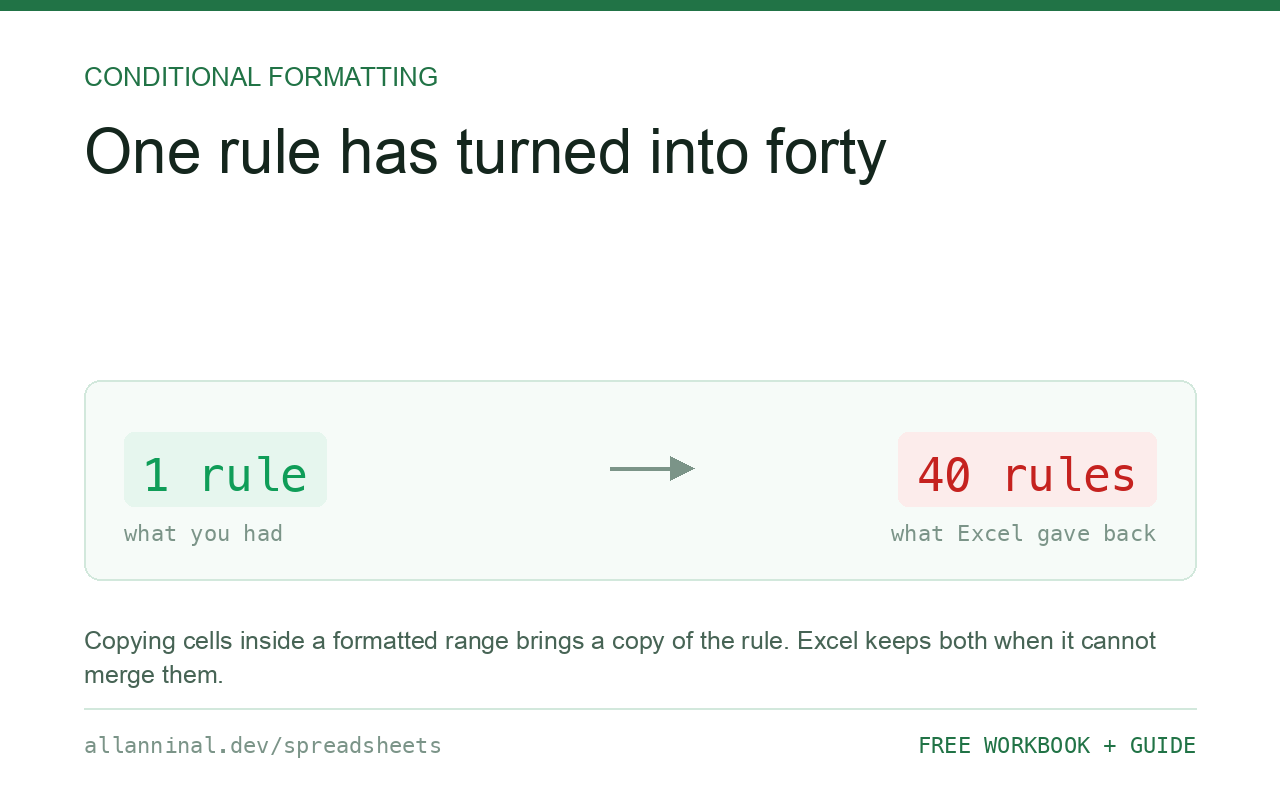
Copying and pasting cells inside a formatted range splits the rule, because the pasted cells bring their own copy of it. Repair it by deleting every fragment in Manage Rules and applying the rule once over the whole range. Prevent it by pasting with Paste Special → Values, which carries no formatting and therefore no rules.
Why the rules multiply
Conditional formatting travels with a cell, exactly like a fill colour or a border. Copy a formatted cell and paste it three rows down, and the pasted cell arrives carrying its own copy of the rule.
Excel tries to merge that copy back into the existing rule. When the ranges are adjacent it
succeeds. When they are not, it cannot, so it keeps both — and the Applies to ranges
start looking like $A$2:$A$7,$A$14,$A$22:$A$36.
Do that for a few weeks and there are forty rules. The sheet slows down, because every rule is evaluated for every cell it covers, and worse, they begin to disagree: some fragments get edited and others do not, so identical-looking rows are coloured differently.
| What you see | What actually happened | What fixes it |
|---|---|---|
| Dozens of near-identical rules | Pasting split the original repeatedly | Delete all, apply once |
| Ranges full of commas | Merged fragments that could not be joined | Same fix |
| Identical rows coloured differently | Fragments have drifted apart | Delete all, apply once |
| Scrolling has become slow | Every rule is evaluated per cell | Fewer rules, bounded ranges |
| Formatting appears where there is no data | The range was extended by a paste | Reset Applies To |
How to clean up fragmented rules
Look at the damage first
Home → Conditional Formatting → Manage Rules, then set Show formatting rules for to This Worksheet. It defaults to the current selection, which is why the mess usually goes unnoticed.
Widen the Applies to column. Commas in there are the symptom.
Delete every fragment
Do not try to repair them individually — on forty fragments it is slower and you will miss one. Select all, then Conditional Formatting → Clear Rules → Clear Rules from Entire Sheet.
Write your rules down first. This removes all of them.
Apply the rule once, over the whole range
Select A2:F500 in one action and add the rule once. One rule with one
clean range is faster and cannot drift out of step with itself.
Paste values from now on
Paste Special → Values (Ctrl+Alt+V then V) carries no formatting, so it cannot carry a rule. This one habit prevents the whole problem.
It also stops you dragging fill colours and borders around, which is the other way a tidy sheet slowly stops looking tidy.
Everything on this page, as a workbook you can use on your own data
The Excel Data Cleanup Kit — a seven-tab workbook that finds all nine of these faults in a pasted column and hands back a cleaned version, a five-page PDF guide, and a short read-me. Free, no email required.
- Excel-Data-Cleanup-Workbook-Free.xlsx — paste a column, read the diagnosis, take the cleaned output
- Excel-Data-Survival-Guide.pdf — the eight failures, the import routine that prevents them, every formula explained
Plain .xlsx: no macros, no add-ins. Opens in Excel, Google Sheets,
Apple Numbers and LibreOffice Calc.
Why it slows the sheet down
Every conditional formatting rule is re-evaluated for every cell in its range whenever anything on the sheet changes. One rule over 3,000 cells is 3,000 evaluations. Forty fragments covering the same cells is 120,000, for exactly the same visual result.
Rules that use COUNTIF or INDIRECT are much heavier again, and
INDIRECT is volatile, meaning it recalculates on every change anywhere.
Use a table where you can
A range formatted as a table (Ctrl+T) extends its formatting to new rows on its own, which removes one of the reasons people copy formatted cells around in the first place.
Keep rules to whole columns of a bounded range
Applying a rule to A:A covers 1,048,576 cells. Applying it to A2:A5000
covers what you have. On a workbook with several rules this is the difference between instant and
sluggish.
Check it periodically
On any workbook that several people edit, open Manage Rules with the worksheet view once a month. It takes ten seconds and it catches the drift long before anyone notices the colours have stopped making sense.
Questions people ask
Why do my conditional formatting rules keep multiplying?
Conditional formatting travels with a cell. Copying and pasting inside a formatted range brings a copy of the rule, and where Excel cannot merge it back it keeps both.
How do I fix dozens of fragmented rules?
Note the rules, clear all rules from the entire sheet, then apply each one once over the whole range. Repairing fragments individually is slower and you will miss some.
How do I stop it happening again?
Paste with Paste Special > Values when moving data inside a formatted range. Values carry no formatting, so they cannot carry a rule.
Do conditional formatting rules slow Excel down?
Yes. Each rule is re-evaluated for every cell it covers whenever anything changes, so fragments multiply the work for no visual difference. Rules using INDIRECT are worse, because it is volatile.
Should I apply rules to whole columns?
No. A whole-column rule covers over a million cells. Bound it to the rows you actually use.
How do I see all the rules on a sheet?
In Manage Rules, change the dropdown from the current selection to This Worksheet. It defaults to the selection, which is why the mess goes unnoticed.
Related guides
Take the workbook with you
The Excel Data Cleanup Kit — a seven-tab workbook that finds all nine of these faults in a pasted column and hands back a cleaned version, a five-page PDF guide, and a short read-me. Free, no email required.
- Excel-Data-Cleanup-Workbook-Free.xlsx — paste a column, read the diagnosis, take the cleaned output
- Excel-Data-Survival-Guide.pdf — the eight failures, the import routine that prevents them, every formula explained
Plain .xlsx: no macros, no add-ins. Opens in Excel, Google Sheets,
Apple Numbers and LibreOffice Calc.